
Product photos that look shot,
without the shoot.
Fashio sits inside your ikas panel. Open a product, pick a look, and get on-model photography you can put straight on the product page.
Works on your existing product photos. Nothing is changed until you press the button.
What you can do from a product page
Put the garment on a model
Nothing extra to upload. Fashio takes the product photo already on the product and produces a model wearing it — you choose the model, the setting and the pose.
Shoot a whole set at once
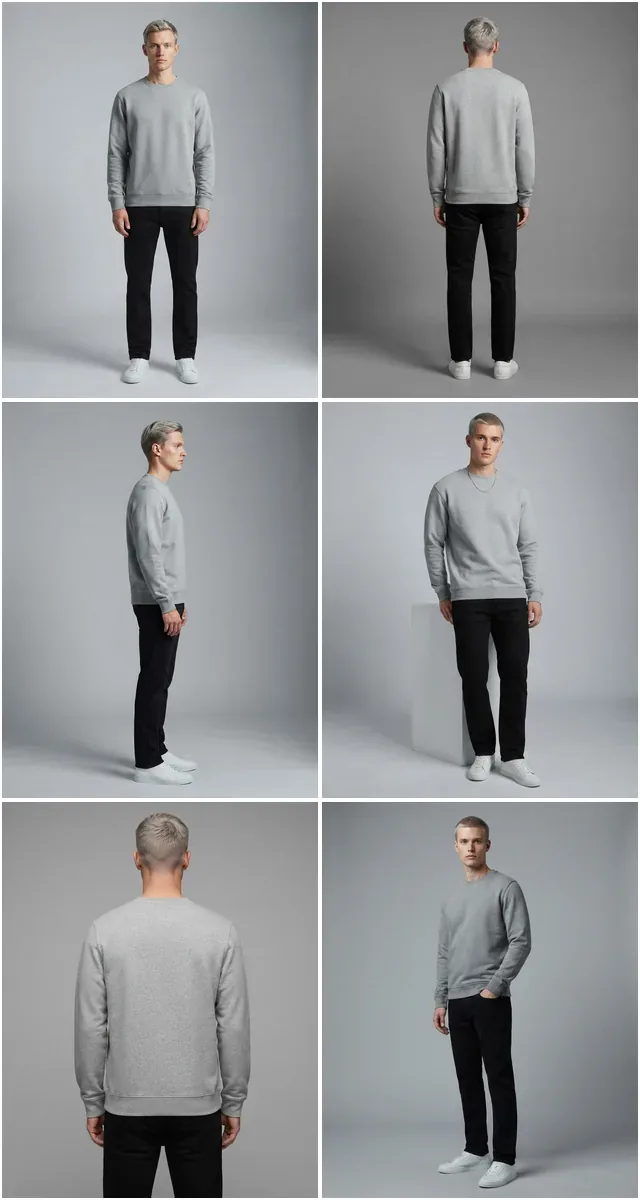
Pick a ready-made photoshoot and Fashio renders every shot in it against your product: front, side, detail, full length. One product, a full page of images.
Fix the photos you have
Remove the background, upscale a soft image, reframe for a different aspect ratio, or turn an amateur phone shot into something that belongs on a product page.
Publish without leaving ikas
Every result has an Add to product button. Press it and the image lands on that product, ready to reorder or set as the main image.
How it works
- 1
Install the app
Fashio asks to read and write products. It never touches orders, customers or payments.
- 2
Connect your Fashio account
Paste your Fashio API key once. You buy credits in your Fashio dashboard, not through ikas, so nothing is charged to your store bill.
- 3
Open a product
In the product page, open the app actions menu and choose the Fashio entry — one for a single photo, one for a catalogue shoot.
- 4
Generate and add
Pick the source photo and the look, press generate, and add the results you like to the product. The rest you simply download or discard.
Where to find it
Both entries sit in the actions menu on a product page in your ikas panel. There is no separate dashboard to learn and no settings screen to configure.
- FGenerate with Fashio
- FCatalog shoot with Fashio
What it does not do
Nothing happens on its own
Fashio does not watch your catalogue, does not generate in the background, and never edits a product you did not open. Every image costs credits, so every image is a decision you make.
Products only
The app reads a product's existing images and writes new ones back. It has no access to orders, customers, discounts or anything else in your store.
No customer data
Fashio works on product images. It never receives, requests or stores customer information of any kind.
Questions
- Do I need a photographer or a model?
- No. Fashio works from the product photo you already have — a flat lay, a mannequin shot, even a phone picture on a hanger. The model is generated.
- How much does it cost?
- You buy credits in your Fashio account and spend them per image. Nothing is billed through ikas, and installing the app costs nothing on its own.
- Can I use it on several products at once?
- A catalogue shoot runs one product at a time but renders every shot in the chosen photoshoot, so a single product with a few angles becomes a full set of images.
- Does it change my product pages automatically?
- Never. Results appear in the app first. An image is only added to a product when you press Add to product on that specific image.
- I also sell on Shopify. Do I pay twice?
- No. Credits live in your Fashio account, not in the store, so the same balance covers ikas, Shopify and the API at the same time.
Try it on one product
Pick your worst product photo and see what comes back. That is usually the fastest way to tell whether this is worth it for your catalogue.
Get startedFashio läuft in deinem ikas-Panel. Öffne ein Produkt, wähle einen Look und erhalte Model-Aufnahmen, die aus dem vorhandenen Produktfoto entstehen — danach fügst du sie mit einem Klick dem Produkt hinzu.
So funktioniert es
1. App installieren und Produktzugriff geben. Fashio liest die vorhandenen Bilder eines Produkts und schreibt neue zurück. Bestellungen, Kunden und Zahlungen werden nie berührt.
2. Fashio-API-Schlüssel einmal einfügen. Guthaben kaufst du im Fashio-Konto, nicht über ikas — auf deiner Shop-Rechnung erscheint nichts.
3. Produkt öffnen und generieren. Wähle im Aktionsmenü des Produkts den Fashio-Eintrag — einen für ein einzelnes Foto, einen für ein Katalog-Shooting. Bestimme das Ausgangsfoto und danach Werkzeug, Model, Umgebung und Pose.
4. Hinzufügen, was dir gefällt. Jedes Ergebnis hat einen Zum Produkt hinzufügen-Button. Was du nicht hinzufügst, landet auch nicht am Produkt.
Was du bekommst
- Model-Aufnahmen aus einem Flatlay, einer Puppenaufnahme oder einem Handyfoto am Bügel.
- Katalog-Shootings, die jede Aufnahme eines gewählten Shootings mit einem Produkt rendern.
- Aufbereitung — Hintergrund entfernen, hochskalieren, neu zuschneiden, Amateur zu Profi.
- Dasselbe Studio wie im Web-Dashboard. Nichts bleibt dem Browser vorbehalten.
Was es nicht tut
Es überwacht deinen Katalog nicht, generiert nichts im Hintergrund und schreibt weder deine SEO noch deine Alt-Texte. Ein Shooting läuft auf dem Produkt, das du geöffnet hast, und ein Bild erreicht dieses Produkt erst, wenn du darauf klickst.
Verkaufst du auch über Shopify?
Das Guthaben liegt im Fashio-Konto und nicht im Shop, also deckt dasselbe Guthaben ikas, Shopify und die API gleichzeitig ab. Alle Integrationen.