How do you create a ghost mannequin effect in Photoshop?
You create a ghost mannequin effect in Photoshop by compositing two source photos: open the front mannequin shot, place the inside-neckline shot on a layer above it, mask out the mannequin with the pen tool, reveal the inside neckline through the mask, refine the mask edges at 200–400% zoom, colour- and exposure-match the two layers, clean up pinning marks, and flatten and export. A skilled retoucher takes 15–30 minutes per image; an AI ghost mannequin tool produces the same output from a single photo in 30–60 seconds.
8 Photoshop steps vs 3 AI steps 15–30 min vs 30–60 sec $5–$25 vs $0.50–$2 per image 2 source photos vs 1
The Photoshop route needs a front shot plus an inside-neckline shot, specialist masking skill, and 15–30 minutes per image at $5–$25 outsourced. The AI route needs one front-facing photo and returns a finished ghost mannequin image in 30–60 seconds at $0.50–$2. Photoshop still wins on hero products and complex tailored construction.
For more than 20 years, creating a ghost mannequin image has meant one thing: opening Photoshop, masking out a mannequin frame by frame, and compositing inside-neckline shots manually until the result looked clean. The skills required were specialized, the time investment was significant, and the cost per image — when factoring in skilled retoucher rates — was meaningful enough that most brands outsourced the work to dedicated retouching studios.
In 2026, there is a second path. AI ghost mannequin tools complete the same work in roughly the time it takes to read this paragraph, with no manual selection, no neck joint compositing, and no Photoshop expertise required.
This guide walks through both workflows step by step. The Photoshop tutorial is preserved as a complete reference for retouchers who still work this way, and for anyone who wants to understand what the AI is actually doing under the hood. The AI workflow comparison shows where the new tools have closed the gap, where they still trail manual retouching, and how to decide between them for your production needs.
Part 1: What are the Photoshop steps for ghost mannequin editing?
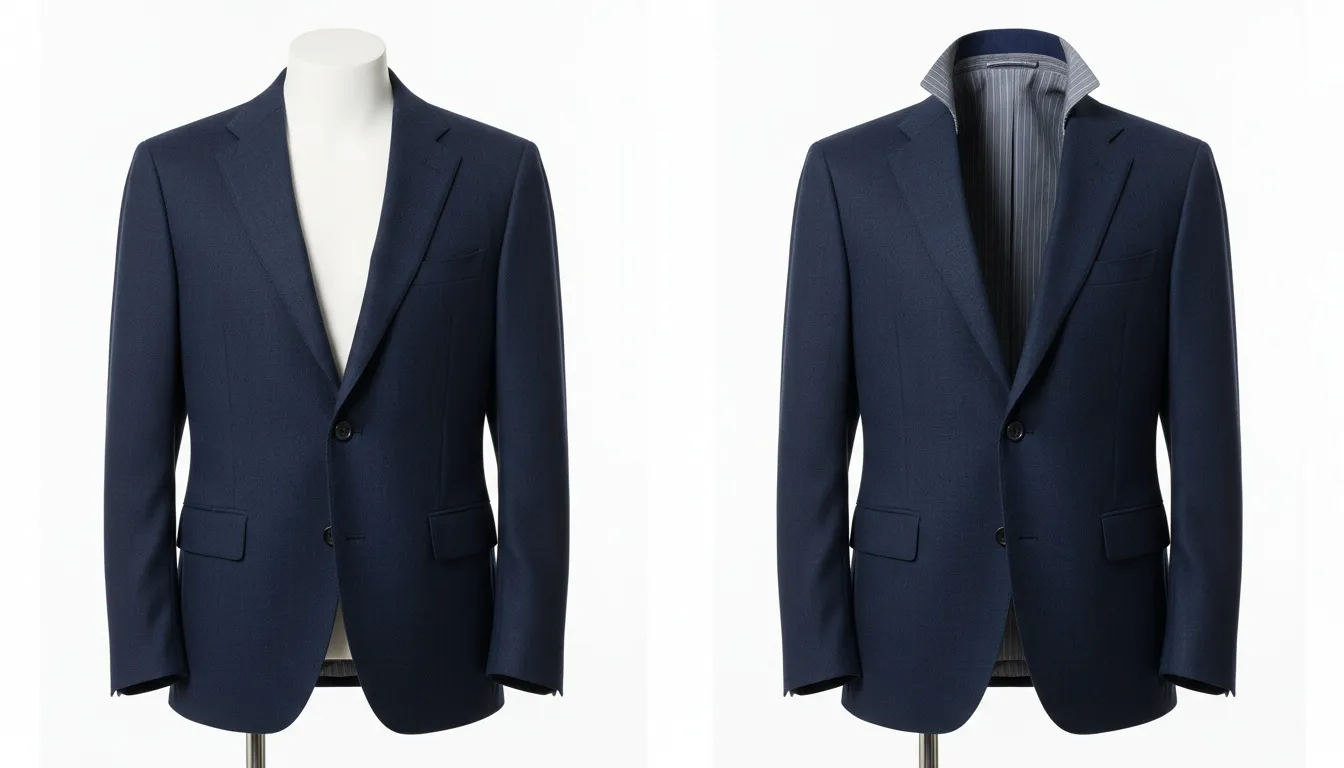
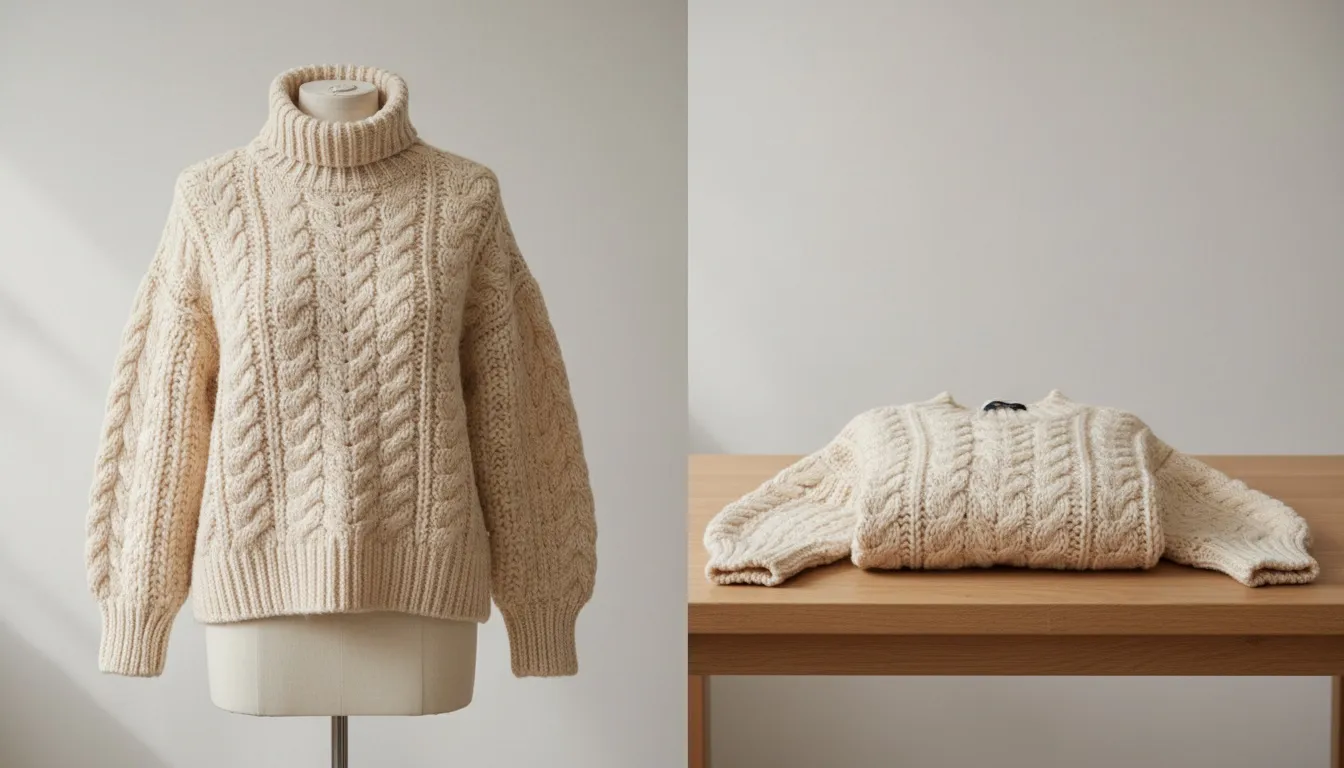
This tutorial assumes you have two source photos: a primary front-facing shot of the garment on a mannequin, and a secondary shot of the inside neckline (typically with the mannequin's neck removed or rotated to expose the interior).
Step 1: Open Both Source Files in Photoshop
Open the front mannequin shot as your base file. Place the inside-neckline shot as a layer on top — File → Place Embedded, or drag the file into your Layers panel. You should now have two layers: the front mannequin shot at the bottom, the inside-neckline shot at the top.
Step 2: Align the Inside-Neckline Layer
The inside-neckline shot needs to be positioned so the inside collar lines up with the front shot's neckline opening. Use Edit → Free Transform (Cmd/Ctrl+T) to scale and rotate the layer until the alignment is correct. Reduce the layer's opacity to 50% temporarily so you can see through it for accurate alignment.
Step 3: Mask Out the Mannequin in the Front Shot
This is the most time-consuming step. Hide the inside-neckline layer temporarily. On the front mannequin layer, use the pen tool to trace a precise path around the visible mannequin parts — typically inside the collar opening, around the neckline edges, and through any sleeve openings where the mannequin's arms or body are visible.
Once the path is complete, convert it to a selection (Cmd/Ctrl+Click on the path), then add a layer mask (Layer → Layer Mask → Hide Selection). The mannequin should now be masked out, leaving an empty interior where it used to be.
Step 4: Reveal the Inside-Neckline Layer Through the Mask
Re-show the inside-neckline layer. Adjust its opacity back to 100%. The inside neckline should now be visible through the masked-out area where the mannequin used to be. If the alignment is off, refine it with Free Transform.
Step 5: Refine the Mask Edges
Zoom in to 200–400% and inspect every edge of the mask. Use a soft black brush at 30–50% opacity to feather any hard edges. Use a white brush to bring back any garment detail that was accidentally masked out. The goal is a perfectly clean transition between the outer garment and the inside neckline — no visible seams, no halos, no remnants of the mannequin.
Step 6: Color and Exposure Match
The two source images were taken at slightly different times under slightly different lighting, so their color and exposure rarely match exactly. Use a Curves or Levels adjustment layer clipped to the inside-neckline layer to match its exposure to the front shot. Use Hue/Saturation or Color Balance adjustments to match the color cast.
Step 7: Final Cleanup
Address any remaining issues: pinning marks where you clipped the garment to the mannequin, fabric wrinkles that distract from the silhouette, lint or dust on the garment, and any uneven shadows. Use the spot healing brush, clone stamp tool, or content-aware fill for these cleanup tasks.
Step 8: Export
Flatten the image (Layer → Flatten Image) and export as PNG or JPEG depending on whether you need transparency. For ecommerce listings, JPEG with white background is standard. For overlay use cases (like marketing graphics), PNG with transparency preserved is more flexible.
How long does ghost mannequin editing take in Photoshop?
An experienced retoucher takes 15–30 minutes per image on standard garments. Beginners need 60–90 minutes while learning the technique, experts with custom actions can get routine apparel down to 8–15 minutes, and complex tailored or multi-layered garments take 45–60+ minutes regardless of skill level.
Realistic time estimates per image:
- Beginner retoucher: 60–90 minutes per image during the learning curve
- Experienced retoucher: 15–30 minutes per image for standard garments
- Expert retoucher with custom actions: 8–15 minutes per image for routine apparel
- Complex garments (tailored, structured, multi-layered): 45–60+ minutes regardless of skill level
Or Skip All Eight Steps
Upload one source photo and get the cleaned ghost mannequin output in 30–60 seconds — no Photoshop required.
Try Fashio AI's Ghost Mannequin Tool →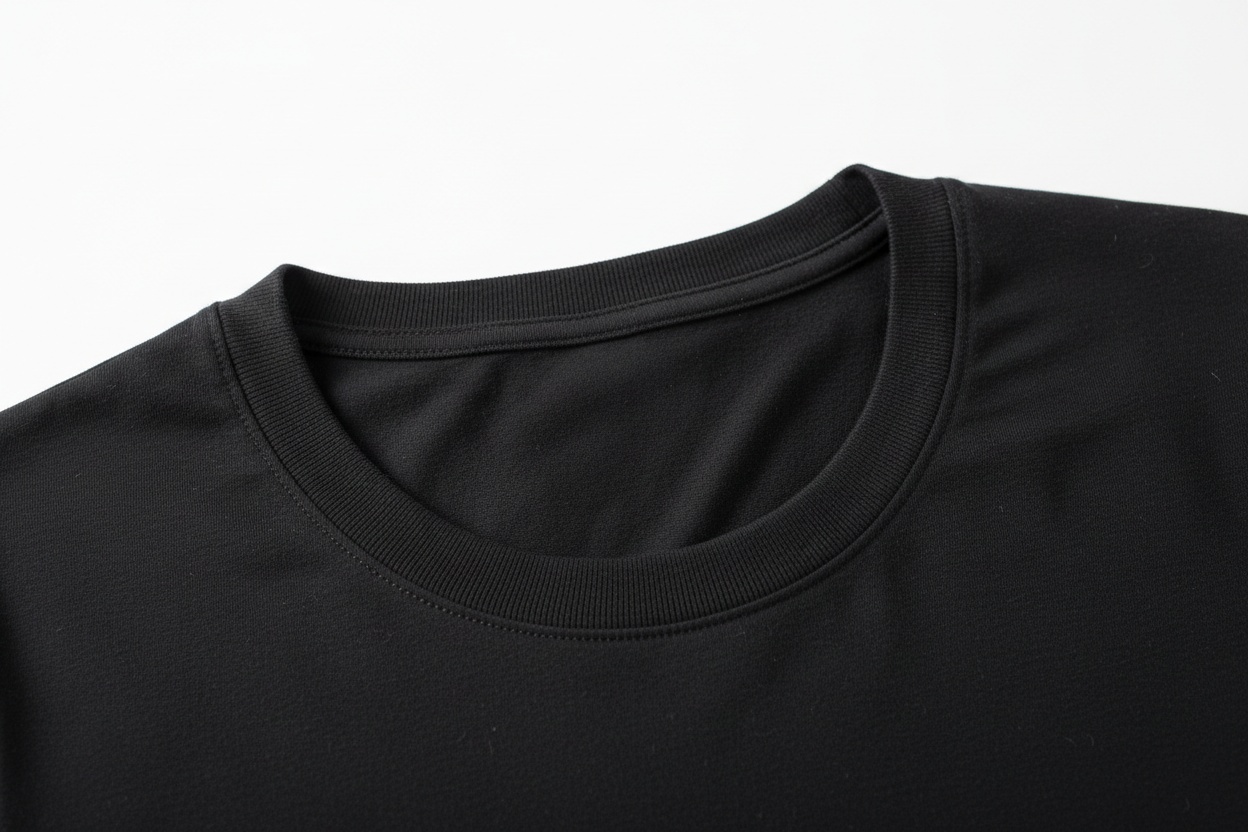
Part 2: How does the AI ghost mannequin workflow work?
The AI workflow is three steps: upload one front-facing mannequin photo, wait 30–60 seconds while the model removes the mannequin and reconstructs the inside neckline, then download the result or push it straight to your ecommerce listing. No second inside-collar shot, no masking, and no neck joint compositing is required.
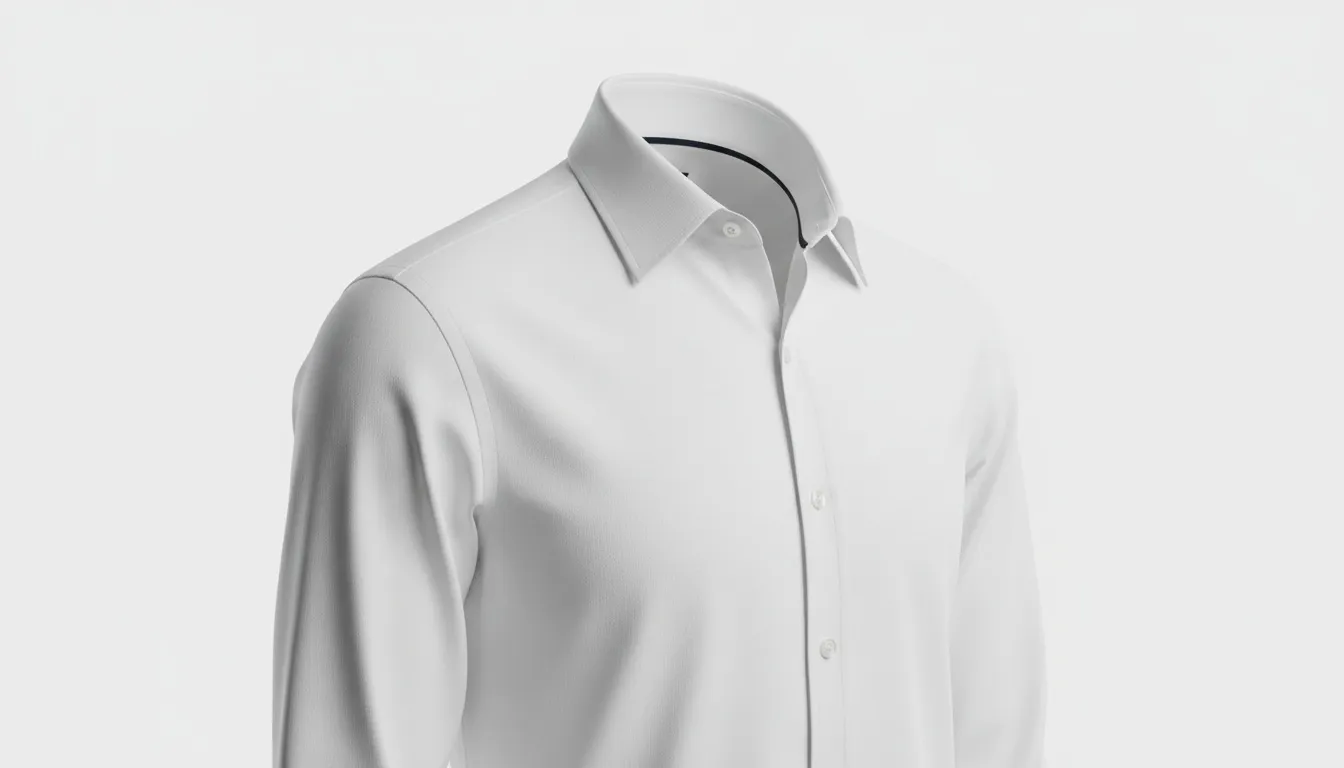
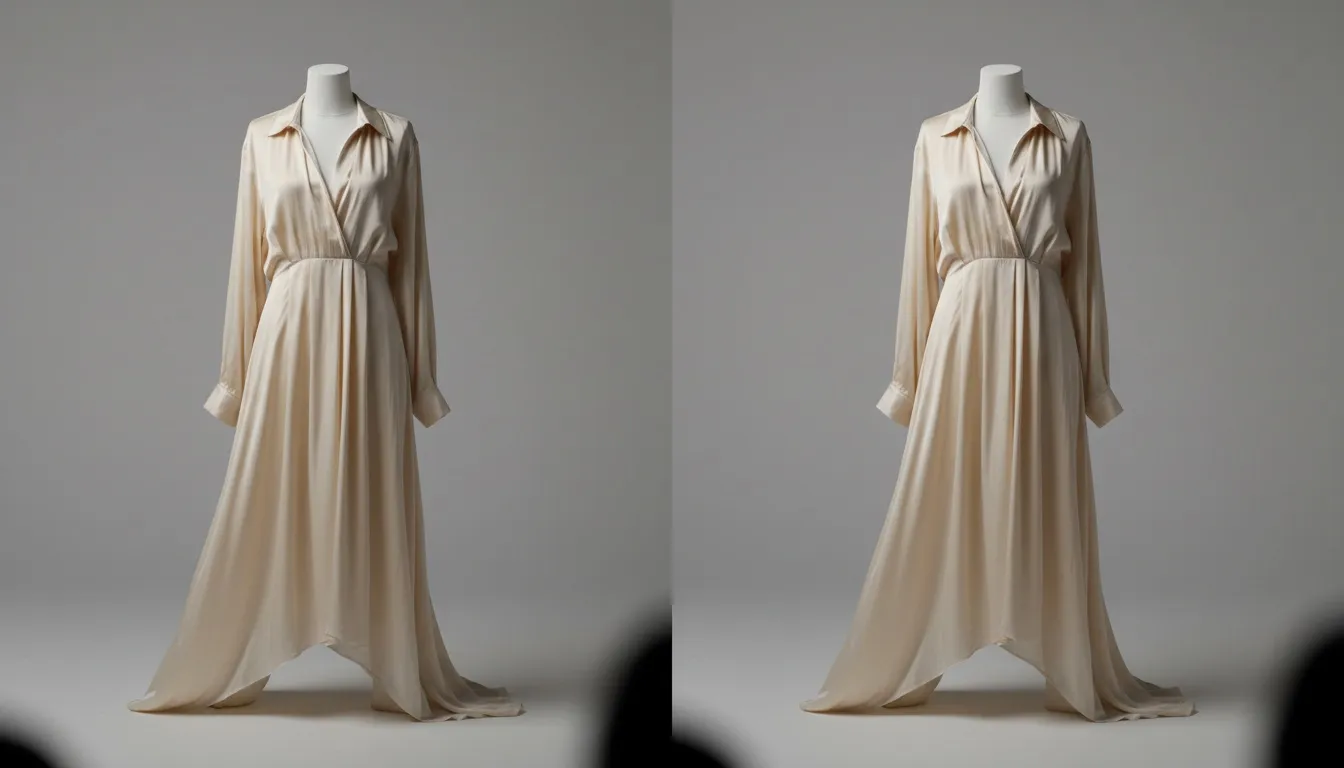
The same finished image — a clean ghost mannequin shot with reconstructed inside neckline, color-matched and ready for ecommerce listings — can be produced through an AI workflow in three steps instead of eight.
AI Step 1: Upload the Source Photo
Open Fashio AI's ghost mannequin tool and upload your source photo. The AI accepts a single front-facing shot of the garment on a mannequin — no inside-neckline secondary shot required.
AI Step 2: Wait 30–60 Seconds
The AI removes the mannequin, reconstructs the inside neckline, cleans up pinning marks, balances color and exposure, and outputs a clean ghost mannequin image. Processing time is typically 30 seconds for a standard image and up to 60 seconds for high-resolution inputs.
AI Step 3: Download or Send to Catalog
The output is delivered as a clean ghost mannequin image at the same resolution as your input. For Shopify, BigCommerce, and other ecommerce platforms with direct integration, the output can be pushed directly to product listings without a download step.
Photoshop vs AI ghost mannequin: which is faster and cheaper?
AI is roughly 30–60x faster per image (30–60 seconds versus 15–30 minutes) and about 10x cheaper ($0.50–$2 versus $5–$25 outsourced). Quality is comparable on standard apparel — t-shirts, dress shirts, jackets, dresses. Photoshop retains an edge on complex construction where manual judgement still matters.
| Dimension | Photoshop Workflow | AI Workflow |
|---|---|---|
| Time per image | 15–30 minutes (skilled) | 30–60 seconds |
| Skill required | Specialized retouching expertise | Upload a photo |
| Source photos needed | Front shot + inside-neckline shot | Single front shot |
| Cost per image (outsourced) | $5–$25 | $0.50–$2 |
| Quality on standard apparel | Excellent | Excellent — comparable |
| Quality on complex garments | Excellent with skilled retoucher | Good — manual review may be needed |
| Batch processing | Possible with actions, still slow | Native — process hundreds in parallel |
| Consistency across catalog | Depends on retoucher discipline | Inherently consistent |
When is manual Photoshop retouching still the better choice?
Photoshop still wins in four cases: hero and luxury products where one image must be perfect, highly complex construction such as tailored suits and layered outerwear, brand-specific retouching aesthetics AI cannot replicate without heavy prompt engineering, and one-off creative or editorial projects. Despite the time and cost advantages of AI, these are the scenarios where the manual workflow remains the better choice:
- Hero products and luxury items. When a single image needs to be perfect for a campaign cover, a magazine spread, or a flagship product page, the manual control of Photoshop justifies its time cost.
- Highly complex construction. Tailored suits with multiple layers, structured outerwear with visible interior linings, and garments with intricate inside-collar construction can require manual judgment that AI tools have not yet matched.
- Brand-specific aesthetic conventions. Some luxury brands have developed signature retouching styles — slightly desaturated palettes, specific shadow placement, custom paper-cutout effects — that AI tools cannot replicate without significant prompt engineering.
- One-off creative projects. For artistic or editorial work where the ghost mannequin is part of a creative concept rather than catalog production, manual Photoshop control is more appropriate than templated AI output.
When should you use an AI ghost mannequin tool instead?
Use AI whenever volume, speed, or consistency matters more than per-image artistic control. Any brand processing more than 20–30 SKUs per month, any same-day launch deadline, any catalog where hundreds of images must look identical, and any lean team without in-house retouching skill. The AI workflow has become the rational default for:
- Catalog-scale production. Any brand processing more than 20–30 SKUs per month will save substantial time and money with AI.
- Time-sensitive launches. Same-day or next-day product photography turnaround is feasible with AI; nearly impossible with Photoshop retouching.
- Consistency across large catalogs. AI produces more consistent output across hundreds of images than even the most disciplined human retouching team.
- Lean teams without retouching expertise. Small brands and DTC startups rarely have in-house Photoshop retouching skills; AI eliminates the gap.
- Iterative testing. When you want to compare ghost mannequin imagery against on-model imagery for the same product, AI lets you generate both formats in minutes.
Should you combine Photoshop and AI in one workflow?
The teams getting the best results in 2026 are not purely AI or purely Photoshop. They use AI for the long tail — the daily catalog volume that needs to ship fast and consistent — and reserve Photoshop expertise for hero products, campaign imagery, and edge cases where manual judgment still wins.
This split typically lands at 90% AI / 10% Photoshop for ecommerce-focused brands, and 60% AI / 40% Photoshop for premium and luxury brands where hero-product imagery is more frequent. Either ratio reflects a meaningful improvement over the all-Photoshop status quo of just a few years ago.
Frequently Asked Questions
How long does it take to create a ghost mannequin image in Photoshop?
A skilled retoucher takes 15–30 minutes per image for standard ghost mannequin work in Photoshop. Beginners typically need 60–90 minutes per image while learning the technique. Complex garments with detailed inside neckline reconstruction can extend to 45–60 minutes even for experienced retouchers.
What Photoshop skills do I need for ghost mannequin work?
Core skills include layer masking, the pen tool for clean selections, basic compositing across multiple layers, color matching between source images, and frequency separation for clean fabric retouching. The hardest skill to develop is consistent neck-joint compositing — getting the inside-neckline shot to blend seamlessly with the outer garment.
How does the AI ghost mannequin workflow compare to Photoshop?
AI ghost mannequin tools complete the same work in 30–60 seconds per image with no manual selection, masking, or neck joint compositing. Quality is comparable to skilled human retouching for standard garments. The cost difference is dramatic — AI runs at $0.50–$2 per image versus $5–$25 per image for outsourced Photoshop retouching.
Is the AI ghost mannequin output the same quality as Photoshop?
For standard apparel — t-shirts, dress shirts, jackets, dresses — AI output is indistinguishable from skilled Photoshop retouching to the human eye. Photoshop retains an edge for highly complex garments with intricate construction (tailored suits, structured outerwear with multiple layers) where manual judgment still produces better results.
Should I learn Photoshop for ghost mannequin work in 2026?
Learning the Photoshop workflow is still valuable for understanding the technique conceptually and for handling edge cases AI tools struggle with. But for production work at scale — the daily catalog photography that most brands need — AI tools have become the rational default. The common pattern is to run routine catalog volume through AI and reserve Photoshop expertise for hero products and complex edge cases.
Can Photoshop's built-in AI features handle ghost mannequin work?
Photoshop's Generative Fill and Object Selection improvements help speed up the manual workflow, but they are not purpose-built for fashion retouching. Generative Fill can struggle with consistent fabric reconstruction and inside-neckline compositing. Dedicated fashion AI tools like Fashio AI deliver better results because they are trained specifically on apparel imagery.
Final Thoughts
The Photoshop workflow for ghost mannequin photography is a craft, and learning it is still valuable for retouchers who want to understand the technique deeply or work on premium production. But for the daily reality of ecommerce catalog photography — fast, consistent, cost-controlled output across hundreds of SKUs — AI tools have become the better path.
The right move for most brands is not "AI vs Photoshop" but "AI for volume, Photoshop for hero." That hybrid lets your team ship fast on routine work while preserving manual control where it actually matters.
For more on the broader shift in ghost mannequin production, see our companion guides on why ghost mannequin photography is outdated in 2026 and 3D ghost mannequin photography, plus our terminology explainer on ghost mannequin vs invisible mannequin.