
Best AI Image Generators for Fashion Brands in 2026 (Tested)
Hands-on review of the best AI image generators for fashion brands in 2026. Midjourney, DALL-E, Stable Diffusion vs fashion-trained alternatives — real outputs.
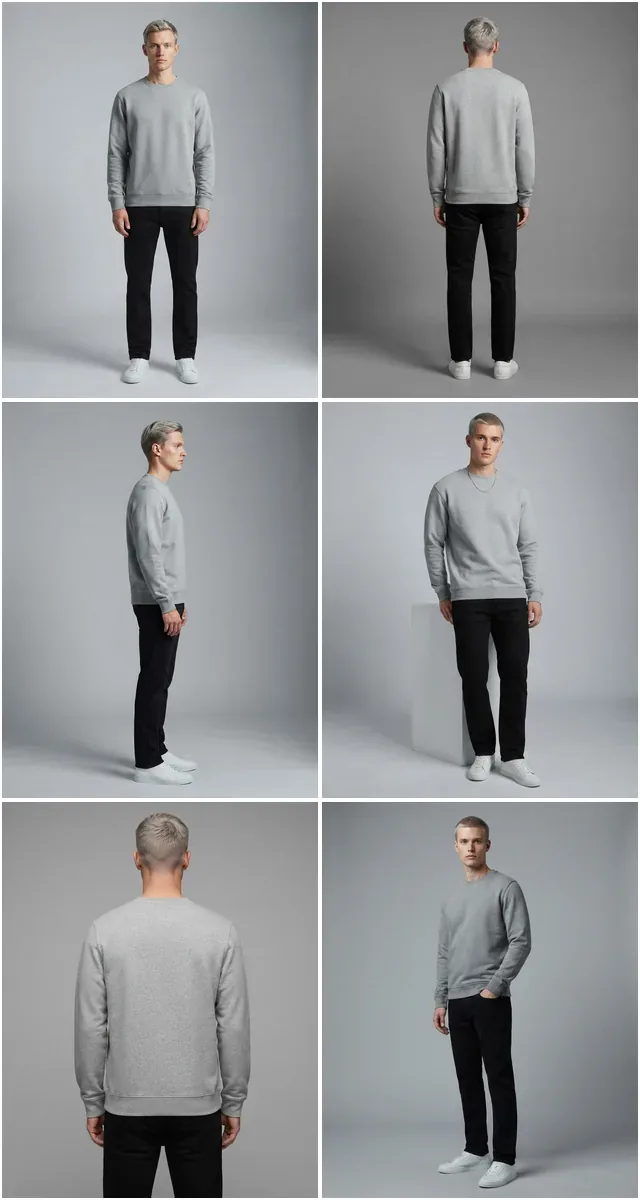
Run a complete catalog photoshoot from a single garment photo. Pick one of 55 ready-made sets — a fi...
Add, remove, or change any part of your image with simple text prompts. Professional fashion retouching in seconds, not hours.
The same product photo, taken in thirteen directions — no designer and no desktop software.
 Layout
 Layout
 Social
 Social
 Social
 Social
 Scene
Scene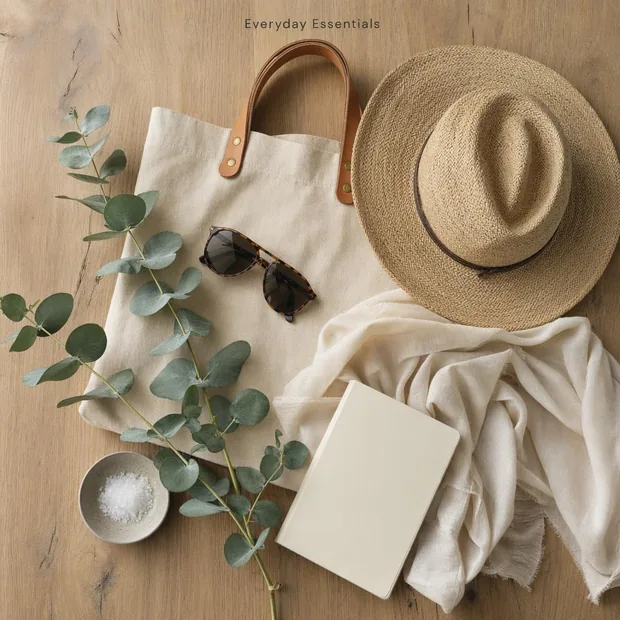 Scene
Scene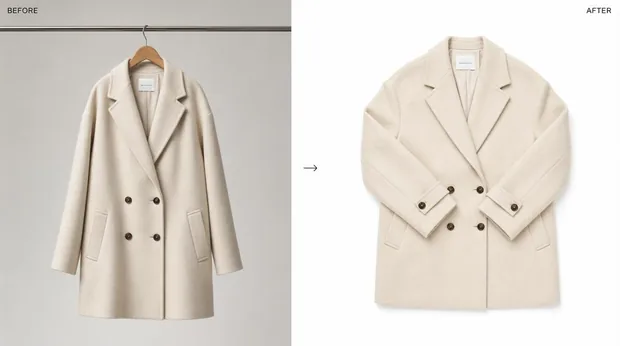 Scene
Scene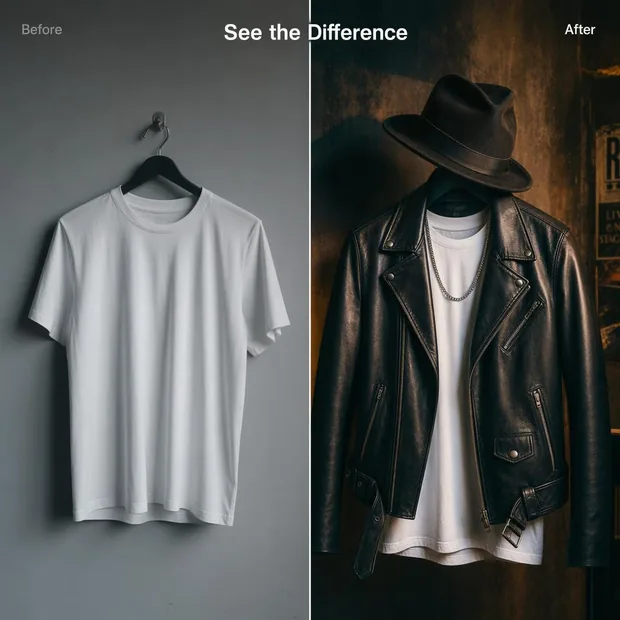 Edit
Edit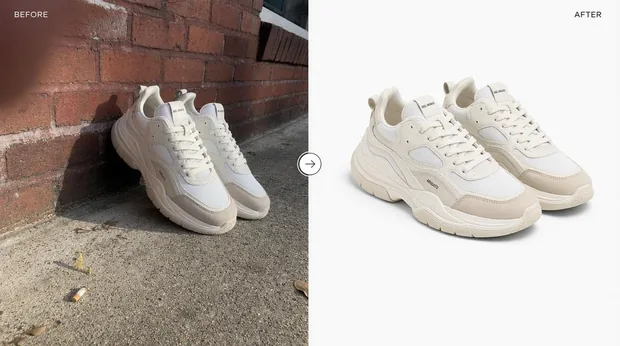 Edit
Edit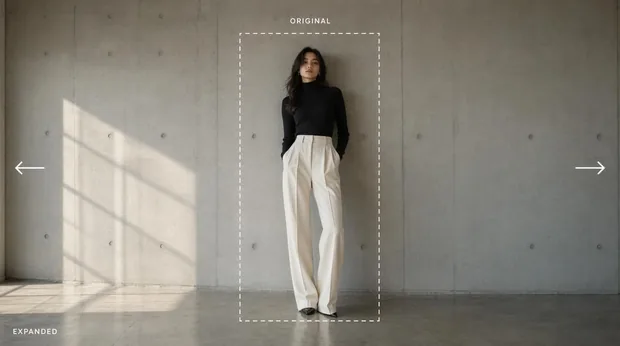 Edit
Edit Social
Add or remove anything with simple text prompts.
Complex edits aimed at removing distractions in seconds.
No manual masking or layer management required.
Remove unwanted objects instantly
Add new elements with text prompts
Transport models to any location
Change fabric colors naturally
Fix blemishes and imperfections
Apply edits to multiple photos
Unlike traditional cloning tools, our AI understands the semantic context of your image. When you ask to "remove the person", it doesn't just cover them up—it regenerates the background details that would naturally be there.
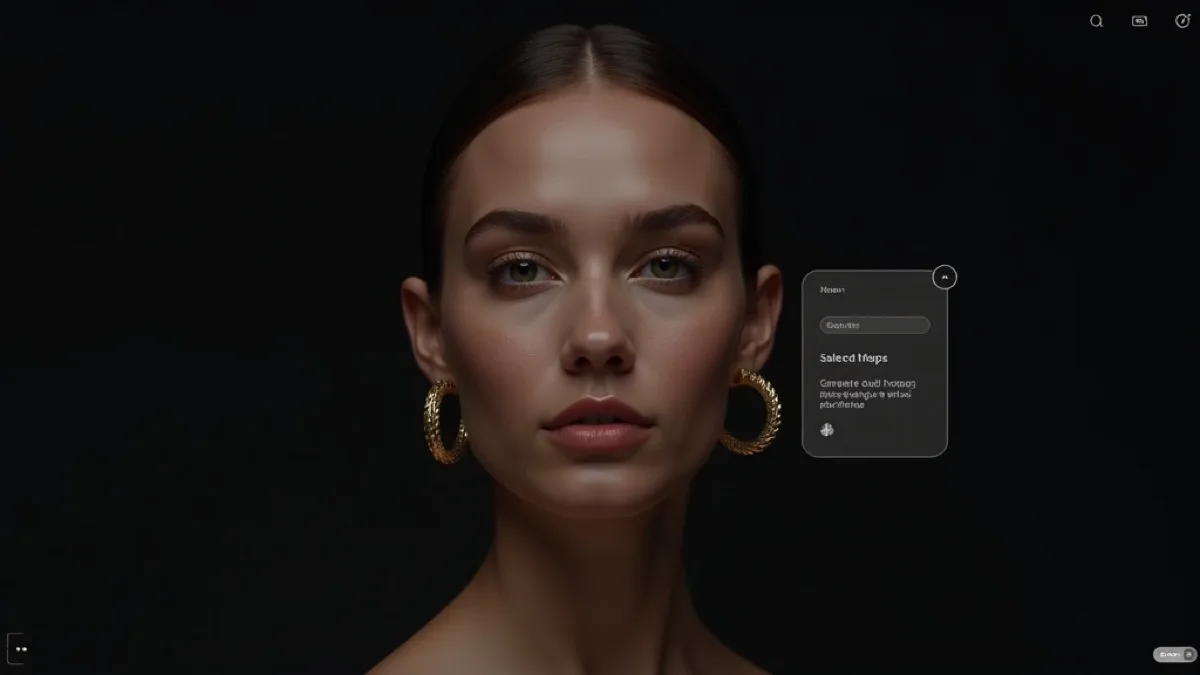
Stop spending hours on manual masking. Let AI do the heavy lifting in seconds.
| Comparison | OLD WAY Manual Photoshop | NEW WAY Fashio AI |
|---|---|---|
| Method | ✕ Manual CloningTedious pixel-by-pixel editing | ✓ AI GenerationInstant semantic understanding |
| Time Per Image | ✕ 15-60 MinutesSlow manual labor | ✓ SecondsAutomated instant results |
| Skill Required | ✕ ProfessionalNeeds Photoshop expertise | ✓ NoneJust type what you want |
| Creative Freedom | ✕ LimitedCan only use existing pixels | ✓ UnlimitedGenerate anything new |
| Cost | ✕ $$$Expensive retoucher hourly rates | ✓ $Fraction of manual retouching |
Remove mannequins, wrinkles, or tags from product photos instantly.
Add props or change environments to create different moods without reshooting.
Standardize backgrounds across thousands of SKUs automatically.
Small teams doing their own retouching between drops.
We do not have a designer. Describing the change in a sentence is the only editing workflow that ever stuck here.
Swapping a background for a seasonal campaign used to mean a freelancer and three days. It is now the same afternoon.
Fixing one detail without reshooting the whole frame is the part that saves the most time.
Hands-on review of the best AI image generators for fashion brands in 2026. Midjourney, DALL-E, Stable Diffusion vs fashion-trained alternatives — real outputs.
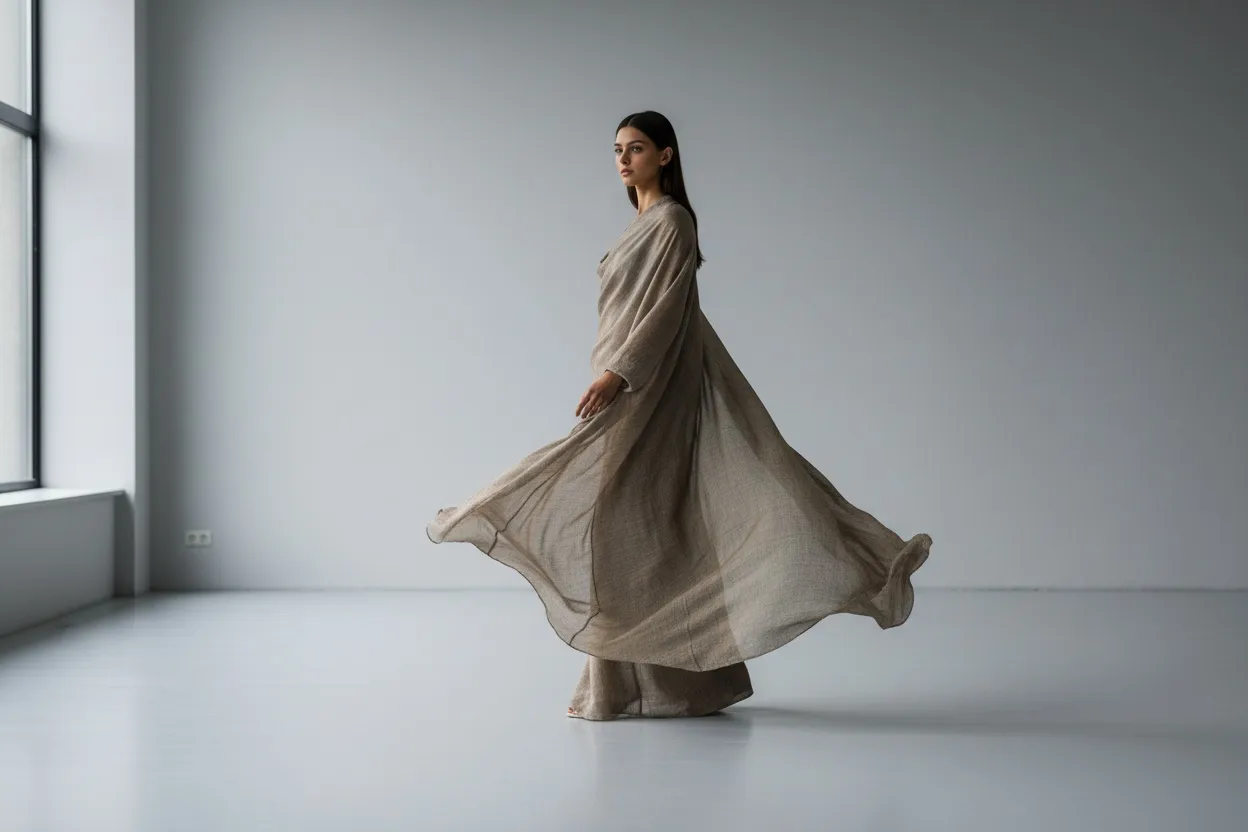
Remove people from product photos with AI in seconds. Step-by-step workflow for ecommerce sellers, marketplace cleanup, lifestyle shoot edits. Tools tested.
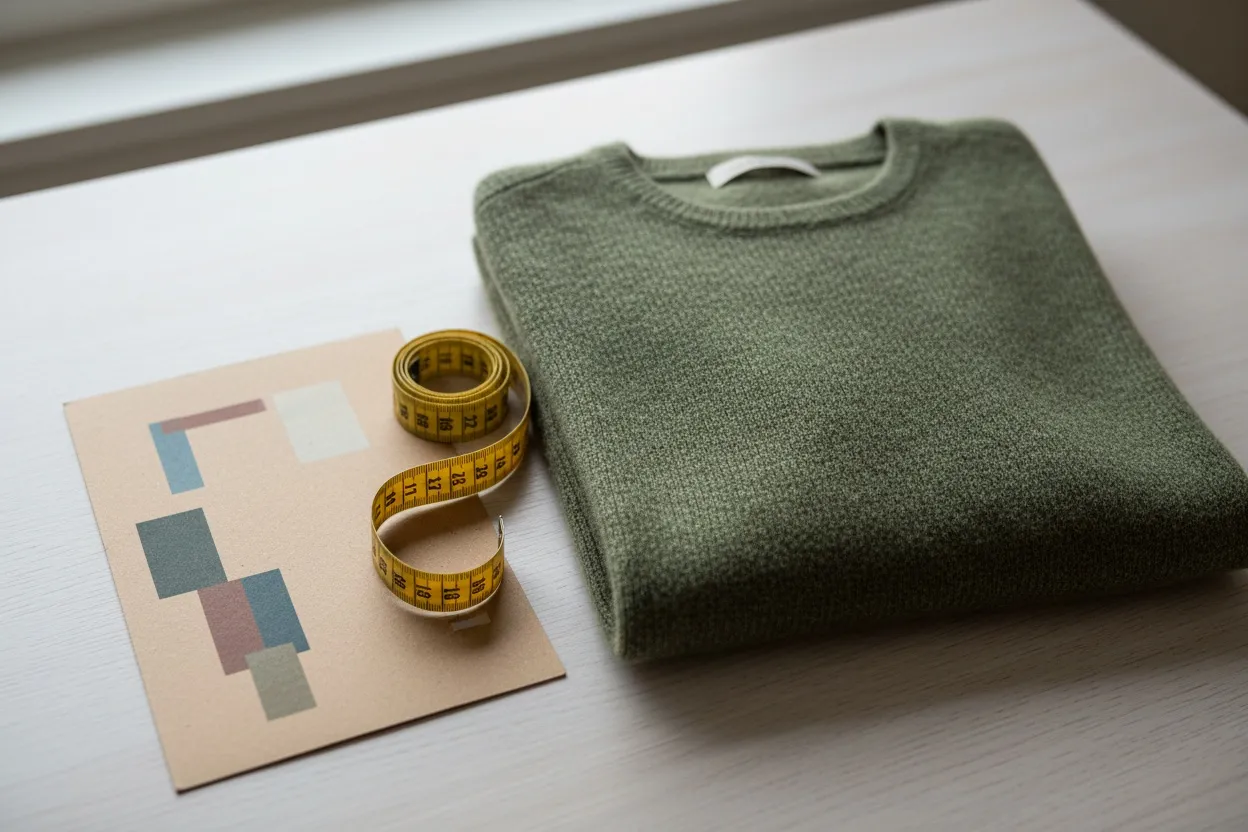
Generate accurate product image descriptions, alt text, and SEO copy with AI. Best image-to-text tools for fashion ecommerce, accessibility, and search.
Add, remove, or change any element in your fashion photos instantly. Generative fill for fashion means perfect backgrounds, seamless object removal, and creative editing — all without Photoshop skills. Fashio AI's AI image editor replaces hours of manual retouching with a simple prompt-based workflow that understands garments, fabrics, and product photography from the ground up.
Whether you sell on your own store, list on marketplaces, or run seasonal campaigns, an AI photo editor purpose-built for fashion gives you studio-quality results at a fraction of the cost and turnaround time.
Generative fill is an AI-powered editing technique that creates entirely new pixel content inside a selected area of your image. Instead of copying and pasting from nearby regions — the way traditional clone-stamp tools work — generative fill AI analyzes the full context of the photo and synthesizes realistic content that matches the lighting, perspective, and texture of the original. Select a mannequin stand, type "remove," and the AI fills the space with a natural continuation of the background fabric or studio surface.
For fashion photography specifically, this technology solves problems that generic editors struggle with. Swapping a plain white backdrop for an outdoor lifestyle scene, extending a cropped image so it fits a vertical social-media format, or removing a price tag pinned to a garment — these tasks demand an understanding of how fabric drapes, how stitching lines should continue, and how shadows interact with textile surfaces. A generative fill AI trained on fashion data handles these nuances automatically, preserving garment shape, color fidelity, and material texture in every edit.
Getting from raw photo to polished result takes three steps:
1. Upload your image. Drag and drop any product photo — flat lay, on-model, or ghost mannequin — into the Fashio editor. The platform accepts JPG, PNG, WEBP, and TIFF files at any resolution. Your original is stored securely and never altered.
2. Select the area to edit. Use the brush or auto-select tool to highlight the region you want to change. Fashio's smart selection recognizes garment boundaries, so masking a jacket sleeve or an entire background takes a single click rather than careful manual tracing.
3. Describe what you want — or choose a preset. Type a natural-language prompt like "replace background with a sunlit cobblestone street" or pick from curated presets such as Studio White, Outdoor Park, and Seasonal Holiday. The AI generates the edit in seconds, and you can iterate with follow-up prompts until the result is exactly right.
Mannequin stands, visible tags, clothing pins, stray wrinkles, and background clutter disappear in a single action. The AI reconstructs whatever should be behind the removed object — whether that is bare skin on a model, a continuation of fabric, or an uninterrupted studio backdrop. Pair this with AI background removal when you need a fully transparent export instead of a filled background.
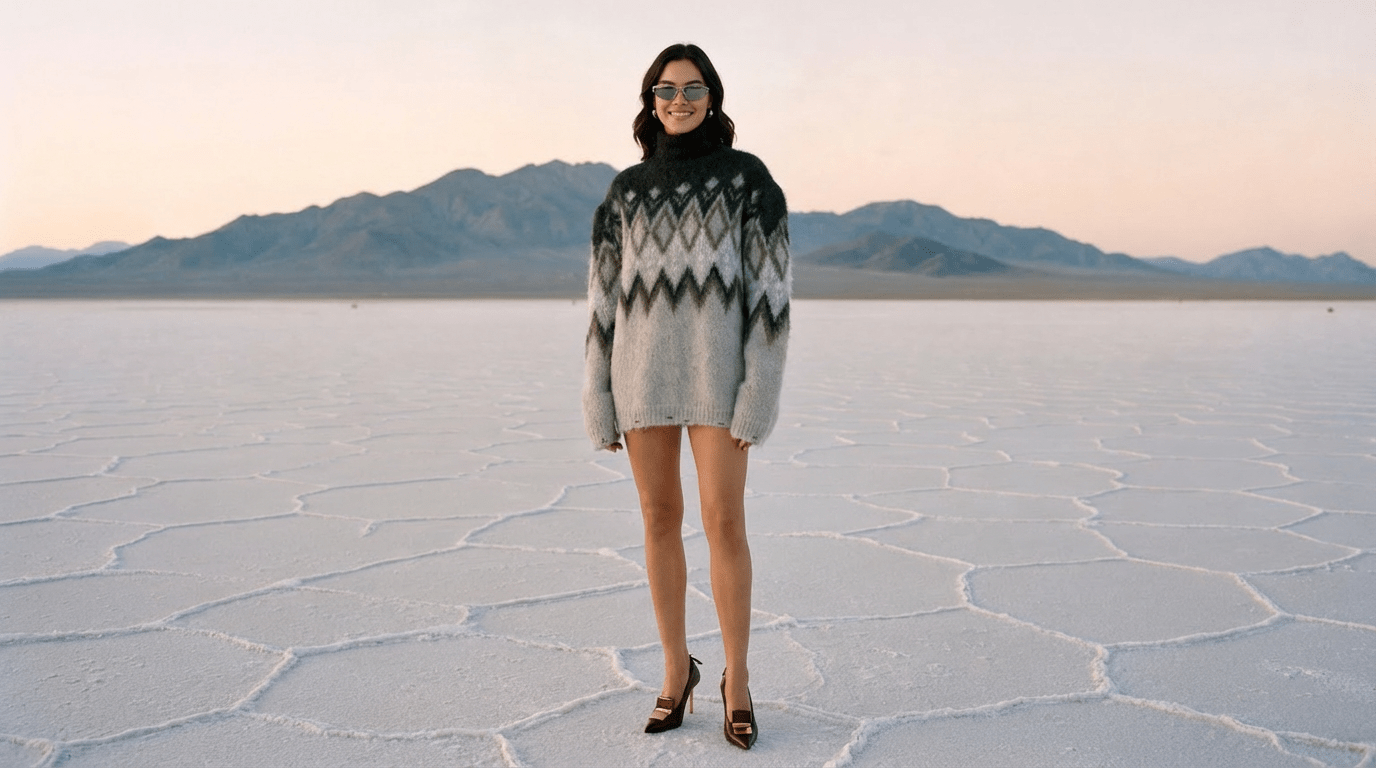
Transport your product into any setting without reshooting. Generate a clean studio gradient, a beach boardwalk, a minimalist living room, or a holiday-themed scene — all while keeping the garment and model pixel-perfect. Consistent backgrounds across your catalog improve brand perception and marketplace compliance, and generative fill makes batch consistency effortless.
Fix uneven lighting, smooth out fabric creases that appeared only on camera, correct color casts from mixed light sources, and sharpen fine details like embroidery or hardware. For deeper quality improvements, combine retouching with AI photo enhancement to bring smartphone-level shots up to professional studio standards.
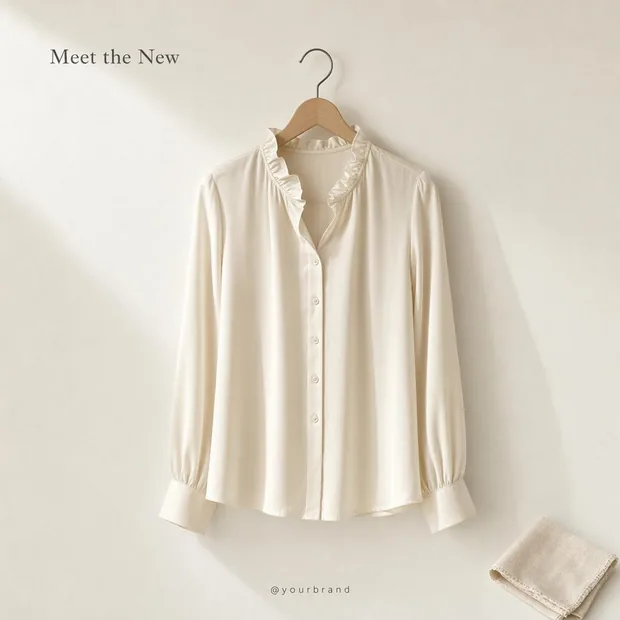
A clothes colour changer is the edit fashion brands reach for most, because a colourway is the one product variant that does not need a new shoot. Describe the change — "make this shirt forest green" — and the editor recolours the garment while leaving the fabric's shading, folds, and highlights intact. That last part is what separates a recolour from a paint-bucket fill: a flat colour swap kills the shadow detail that tells a shopper how a fabric hangs, so the garment stops reading as cloth.
Where it earns its keep:
Recolour before upscaling, not after: the 2× upscale pass sharpens whatever detail is present, so running it on an already-recoloured image keeps the fabric texture crisp. If the colour change is meant to sit on a model rather than a flat lay, generate the on-model shot first with the AI fashion model generator, then recolour.
Need a vertical crop for Instagram Stories from a horizontal product photo? Outpainting extends the canvas in any direction, generating realistic continuations of the background and scene. Use this alongside AI photo reframe to produce every aspect ratio your channels require from a single original shot.
General-purpose image editors treat every photo the same way — a landscape, a headshot, and a garment flat lay all pass through identical models. Fashion demands more. Fabric texture is notoriously difficult for generic AI: silk reflects light differently than cotton, knit patterns must tile correctly, and garment silhouettes need to stay structurally coherent when the background changes around them.
Fashio's AI image editor is trained on millions of fashion images, so it understands drape, weave, color consistency across dye lots, and the way accessories like buttons and zippers catch light. When you remove a mannequin from a blazer shot, the AI knows how the lapel should fall. When you extend a product image, it continues the shadow exactly as a photographer's softbox would cast it. This domain-specific intelligence is why brands choose a specialized tool over a one-size-fits-all photo editor — the output looks right on the first attempt, reducing revision cycles and speeding up time to market.
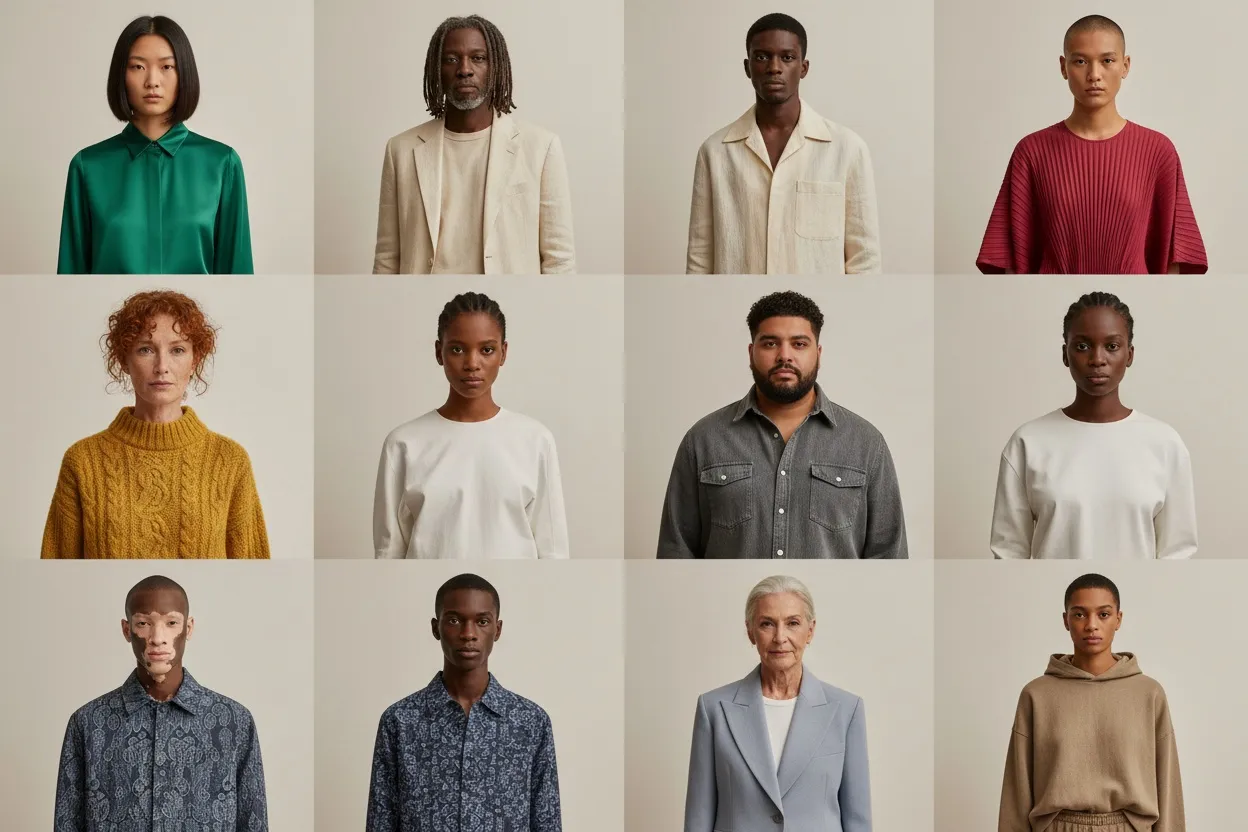
For workflows that go beyond single-image editing, consider using the AI fashion model generator to place garments on diverse virtual models, or AI upscaling to ensure every export meets high-resolution print and web standards.
Yes. Fashio generates edits at the full resolution of your original image, matching its noise profile, color depth, and sharpness. Results are production-ready for marketplace listings, social-media ads, lookbooks, and print catalogs without additional post-processing.
The editor supports object removal (magic eraser), generative fill (adding or replacing content), background replacement, color correction, outpainting (canvas extension), and garment retouching. You can combine multiple edit types in a single session on the same image.
No — images are edited one at a time, and there is no folder upload. Your edit settings stay put between images, so a full-catalog refresh is repetitive rather than complicated.
Upload JPG, PNG, WEBP, or TIFF files. Export in any of those formats, including PNG with transparency. All exports preserve original resolution, and you can convert between formats during download.
All output belongs to you. There are no watermarks, licensing restrictions, or usage fees. You are free to use processed images on your website, marketplaces, advertising campaigns, and printed materials without attribution.
| Dimension | Photoshop (Manual) | Photoshop Generative Fill | Fashio AI Image Editor |
|---|---|---|---|
| Time per edit | 15–60 minutes | 2–5 minutes | Under 30 seconds |
| Skill required | Professional retoucher | Intermediate Photoshop | None — text prompt |
| Fashion-specific training | None | None | Trained on millions of fashion images |
| Fabric, drape, garment understanding | Manual judgment | Generic | Native — purpose-built |
| Batch processing | Slow with actions | Single image | Hundreds in parallel |
| Cost per image (outsourced) | $5–$50 | N/A | $0.10–$1 |
| Best for | Hero campaigns, complex edits | Mid-tier creative work | Catalog-scale production |
The honest framing: Photoshop remains the right tool for hero products, complex compositing, and creative campaigns where every pixel matters. Fashio AI is the right tool for the daily reality of ecommerce — catalog-scale image cleanup, background standardization, and product retouching across hundreds of SKUs where speed and consistency matter more than per-image custom control.
Removing mannequin stands and pins — A single click eliminates the visible mannequin neck, supports, and pinning marks from on-mannequin product shots, leaving a clean garment ready for catalog or marketplace listings.
Standardizing backgrounds across the catalog — Apply a consistent studio-white or branded backdrop across hundreds of product photos in batch, ensuring every listing matches your brand's visual standards.
Replacing distracting backgrounds with lifestyle scenes — Move a model from a studio to a Paris street, a beach, or a coffee shop without re-shooting. Each scene is generated to match the model's lighting and perspective.
Removing wrinkles, lint, and fabric imperfections — AI-powered fabric retouching that respects weave patterns, fabric drape, and garment construction — far more accurate than generic clone-stamp tools.
Color-correcting product photography — Match the on-screen color to the actual product across mixed lighting conditions, ensuring shoppers see what they will receive.
Outpainting for social-format crops — Extend a horizontal product photo into a vertical 9:16 Instagram Story or TikTok format without losing any of the original composition.
Ready to edit smarter? Try Fashio AI Free →