
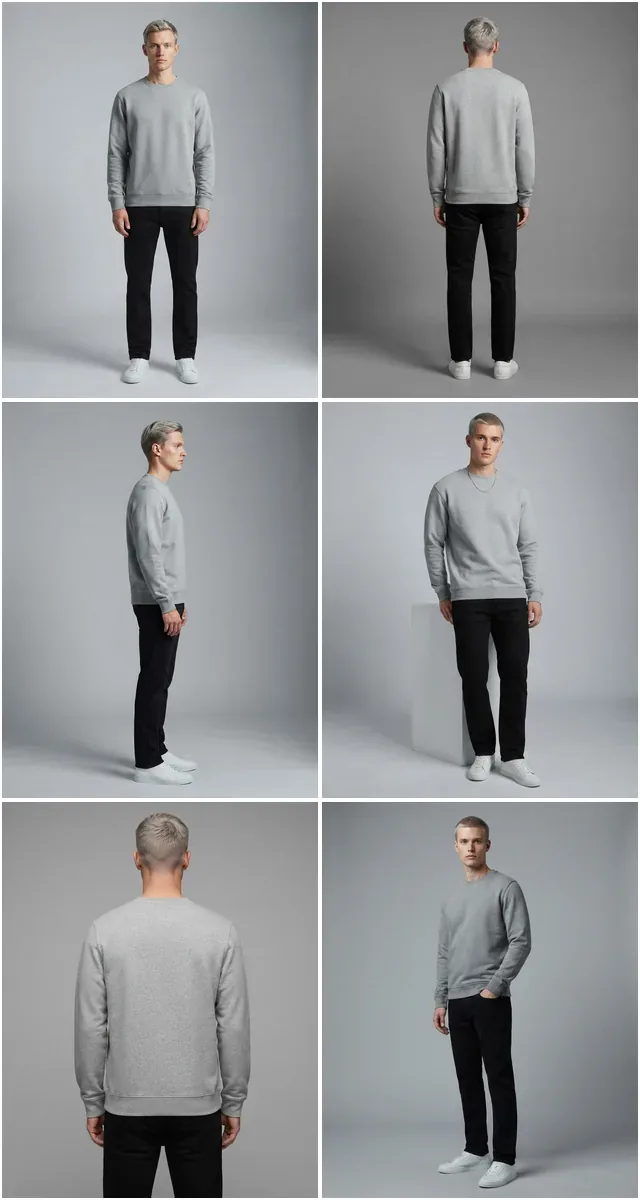
Product photos that look shot,
without the shoot.
Fashio installs into your Shopify admin. Open any product, pick a look, and get on-model photography you can put straight on the product page.
First 3 AI images free. Billed through Shopify. Nothing is changed until you press the button.
What you can do from a product page
Put the garment on a model
Upload nothing extra. Fashio takes the product photo you already have and produces a model wearing it — you choose the model, the setting and the pose.
Shoot a whole set, or many products
Pick a ready-made photoshoot and Fashio renders every shot in it against your product: front, side, detail, full length. The Bulk Editor runs the same look across several selected products, one after another.
Fix the photos you have
Remove the background, upscale a soft image, reframe for a different aspect ratio, or turn an amateur phone shot into something that belongs on a product page.
Publish without leaving Shopify
Every result has an Add to product button. Press it and the image lands in that product's media, ready to reorder or set as the main image.
The photo you already have, on the model you don't
Every frame below is a real result. The left half is the kind of photo already sitting in your product admin; the right half is what goes back on the listing.
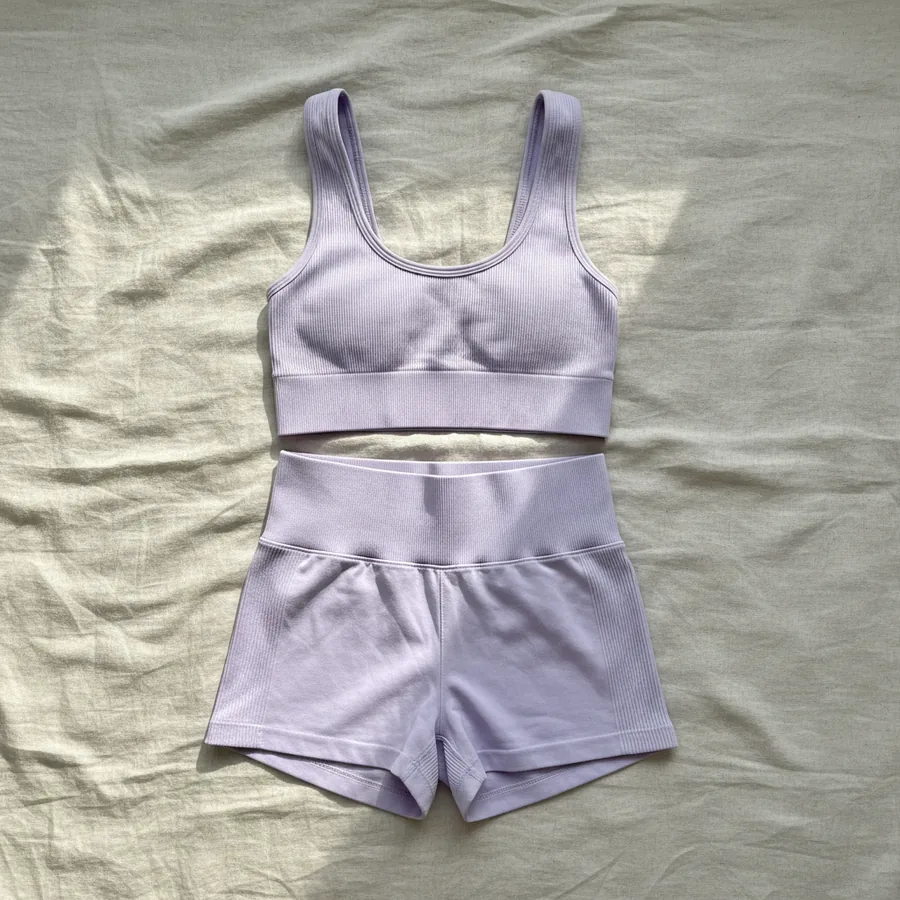 Your photo
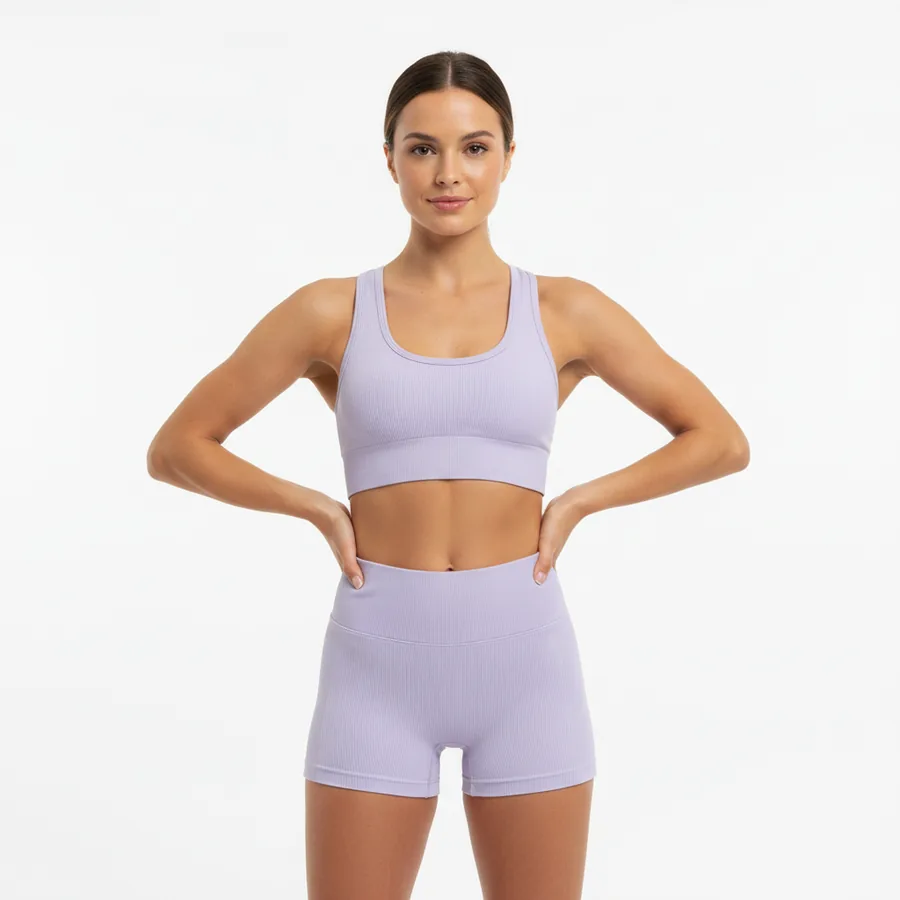 Fashio AI
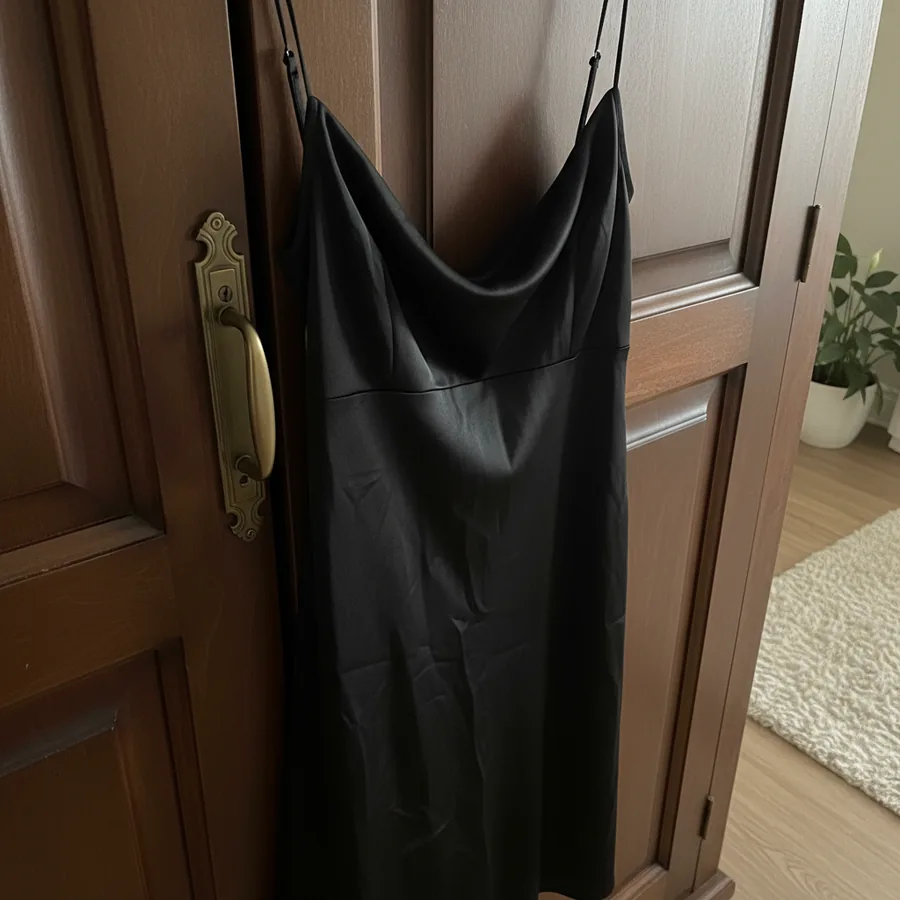 Your photo
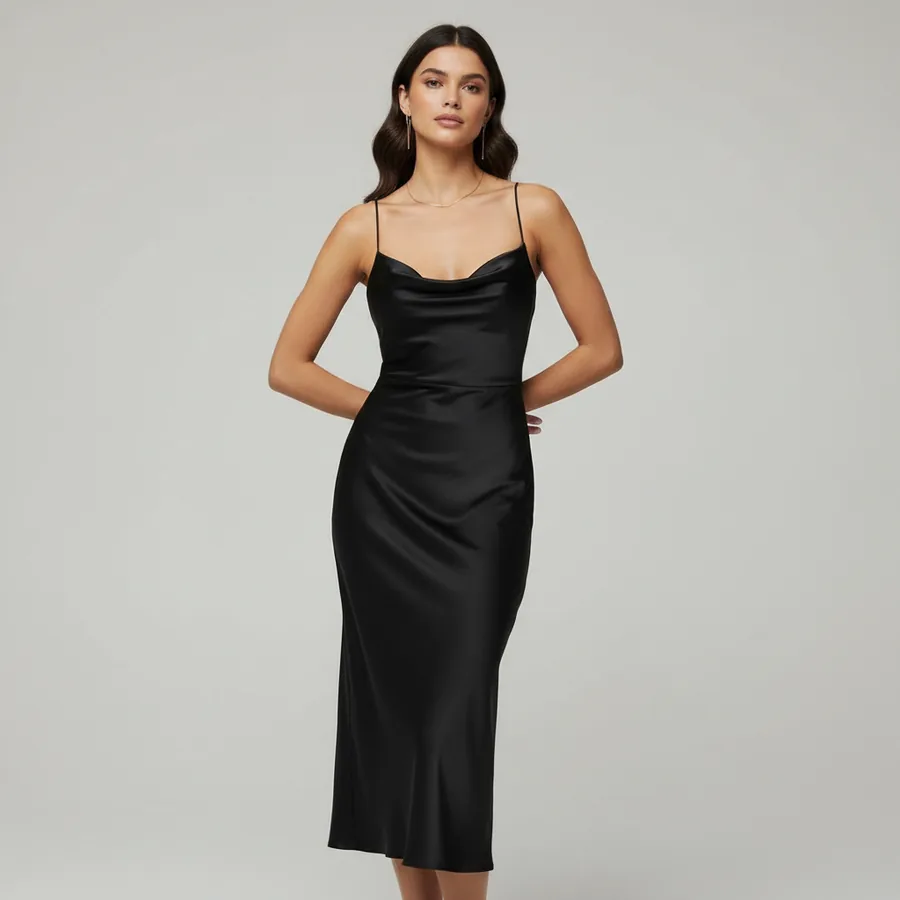 Fashio AI
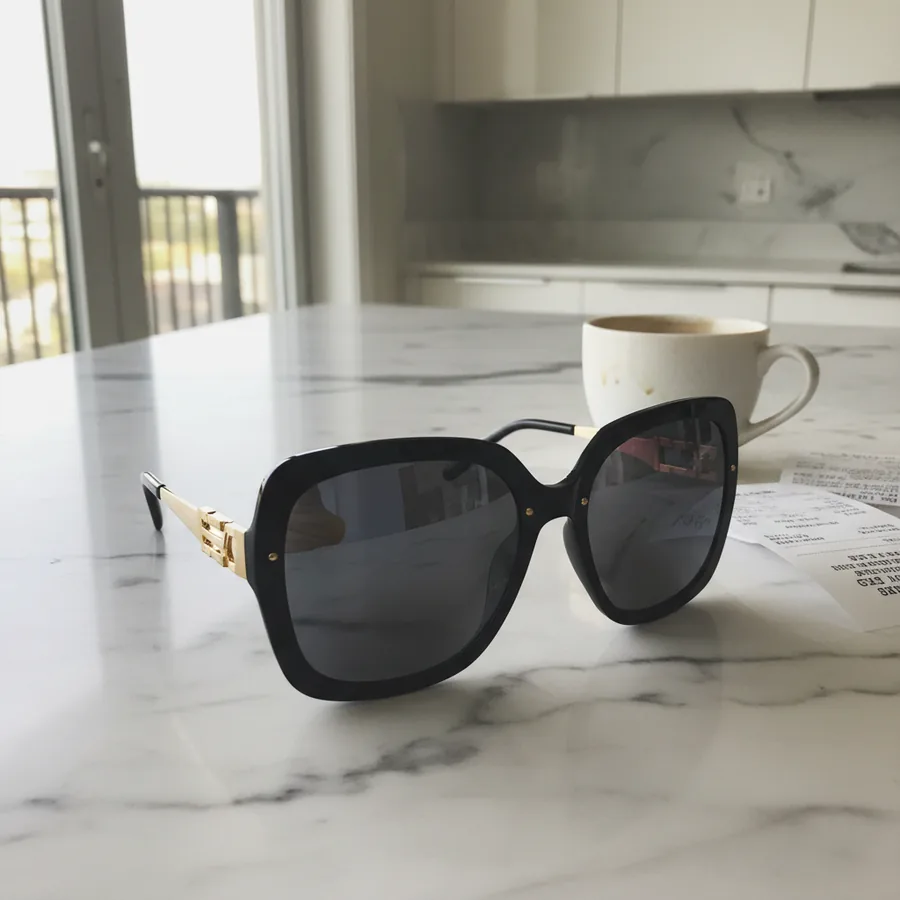 Your photo
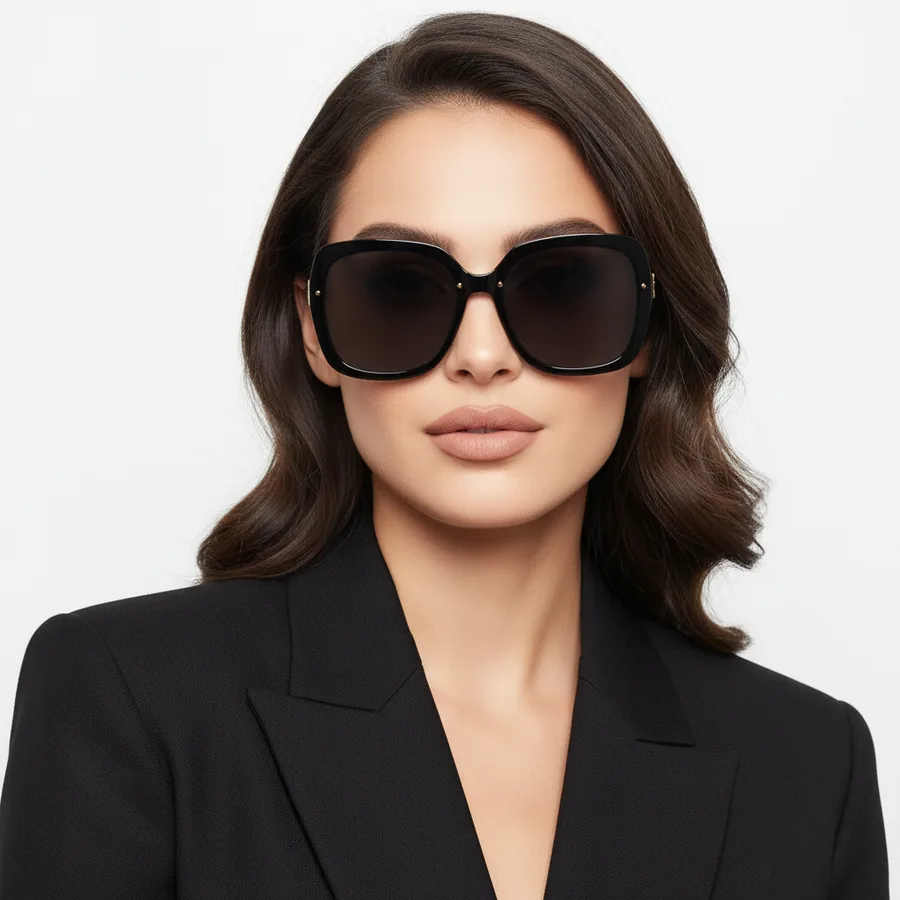 Fashio AI
How it works
- 1
Install the app
Install Fashio AI Studio from the Shopify App Store. It asks for one permission: to read and write products. It never touches orders, customers or payments.
- 2
Start with 3 free images
Your Fashio account is created automatically — no sign-up form, no API key. When you want more, pick a plan in the app; it is billed on your regular Shopify invoice.
- 3
Open a product
In the product page, open the More actions menu and choose Generate with Fashio or Catalog shoot with Fashio.
- 4
Generate and add
Pick the source photo and the look, press generate, and add the results you like to the product. The rest you simply download or discard.
Where to find it
Both entries sit in the More actions menu on a product page. There is no separate dashboard to learn and no settings screen to configure — the app is the two buttons and the screen they open.
- FGenerate with Fashio
- FCatalog shoot with Fashio
What it does not do
Nothing happens on its own
Fashio does not watch your catalogue, does not generate in the background, and never edits a product you did not open. Every image costs credits, so every image is a decision you make.
One permission, products only
The app reads a product's existing images and writes new ones back. It has no access to orders, customers, discounts or anything else in your store.
No customer data
Fashio works on product images. It never receives, requests or stores customer information of any kind.
Questions
- Do I need a photographer or a model?
- No. Fashio works from the product photo you already have — a flat lay, a mannequin shot, even a phone picture on a hanger. The model is generated.
- How much does it cost?
- Installing is free and includes 3 AI images. Then Growth is $29.99 every 30 days for 160 credits, Scale is $99.99 for 600, and one-time credit packs start at $9.99. Everything is billed through Shopify.
- Can I use it on several products at once?
- Yes. The Bulk Editor on the app home lets you pick several products and generate them in one job with the same set or style, one product after another. Each result still waits for your Add to product press.
- Does it change my product pages automatically?
- Never. Results appear in the app first. An image is only added to a product when you press Add to product on that specific image.
- What happens if I uninstall it?
- The app's access to your store is deleted straight away and Shopify cancels the subscription. Images you already added to products stay where they are — they are your product media now.
Try it on one product
Pick your worst product photo and see what comes back. That is usually the fastest way to tell whether this is worth it for your catalogue.
Install from the Shopify App StoreFashio installs into your Shopify admin. Open a product, pick a look, and get on-model photography made from the product photo you already have — then add it to the product with one press.
How the Shopify Integration Works
- 01
Install and connect
Install Fashio AI Studio from the Shopify App Store and approve its single permission: read and write products. There is no sign-up form and no API key — your Fashio account is created automatically and the first 3 AI images are free. Plans and credit packs are billed on your regular Shopify invoice.
- 02
Open a product and generate
On a product page, open the More actions menu and choose Generate with Fashio or Catalog shoot with Fashio. Pick which of the product's existing photos to work from, choose the tool — AI model shots, background removal, upscaling, or video — and press generate.
- 03
Add what you like to the product
Results appear in the app. Each one has an Add to product button that puts the image into that product's media, ready to reorder or set as the main image. Anything you do not want, you download or ignore. Nothing reaches your storefront unless you put it there.
What You Can Do With Fashio + Shopify
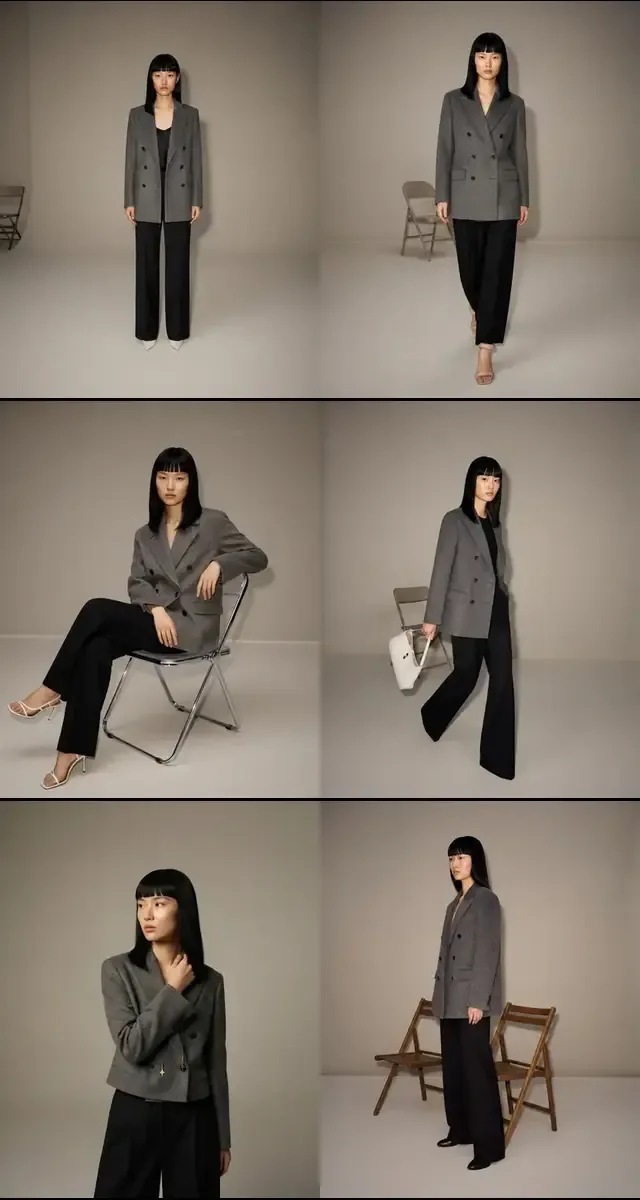 Lookbook
- 01
Replace product photography
Stop outsourcing photo shoots. Generate on-model imagery, lifestyle shots and marketplace-compliant backgrounds from the flat lays you already have.
- 02
Get a full set from one product
A catalogue shoot takes a ready-made photoshoot and renders every shot in it against your product — front, side, detail, full length. One product with a few angles becomes a full page of images.
- 03
Create social and ad content
Turn a product photo into TikTok and Reels content or UGC-style video ads. One listing becomes a content campaign.
- 04
Meet marketplace image rules
White backgrounds and the aspect ratios Amazon, Google Shopping and Shopify's own image rules ask for, with a fixed 2× upscale when a marketplace wants more pixels.
Built for Fashion Brands on Shopify
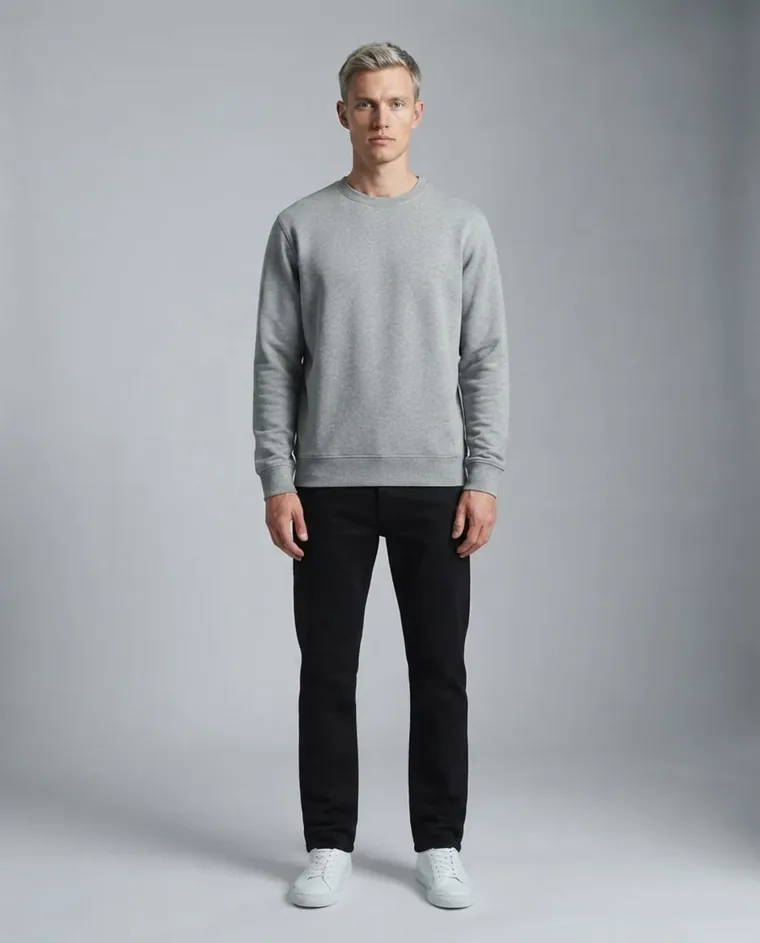 Menswear
Fashio isn't a generic image tool bolted onto Shopify. It's a fashion-specific AI platform, and the Shopify app is the same studio the web dashboard runs — virtual try-on, catalogue creation, pose variation, reframing — reachable from the product you are already looking at.
What the App Does Not Do
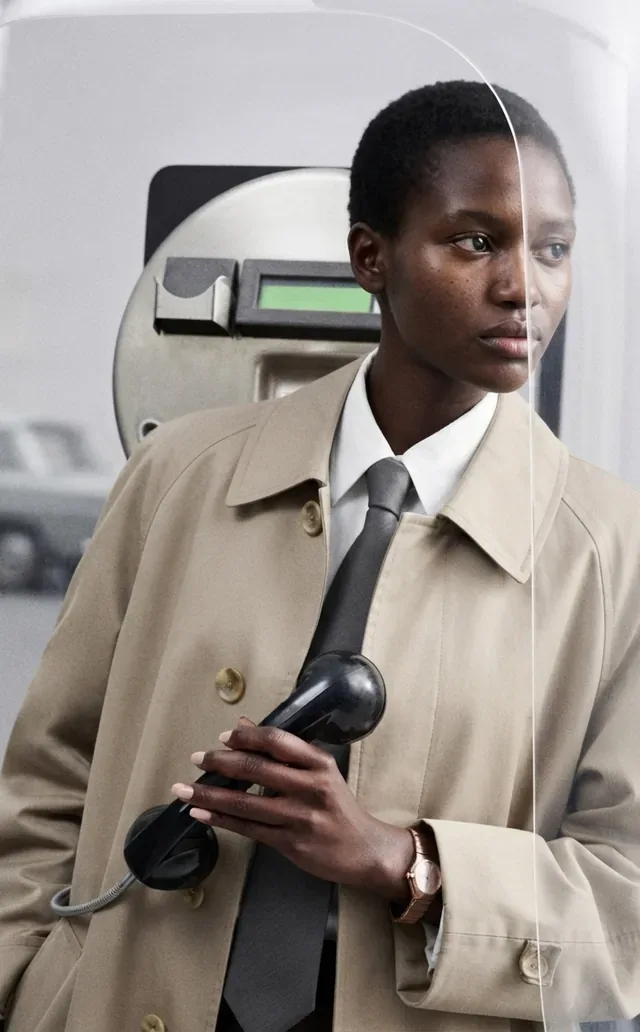 Street
Worth stating plainly, because plenty of tools in this category imply otherwise:
- It does not watch your catalogue. No background jobs, no automatic generation, no edits to products you did not open.
- It does not write your SEO. Alt text, meta descriptions and product copy are untouched. Fashio produces images.
- It does not generate on its own. Even the Bulk Editor only runs on the products you select, and only adds an image when you press the button.
- It has no access to orders or customers. One permission, products only. No customer data is received or stored at any point.
Frequently Asked Questions
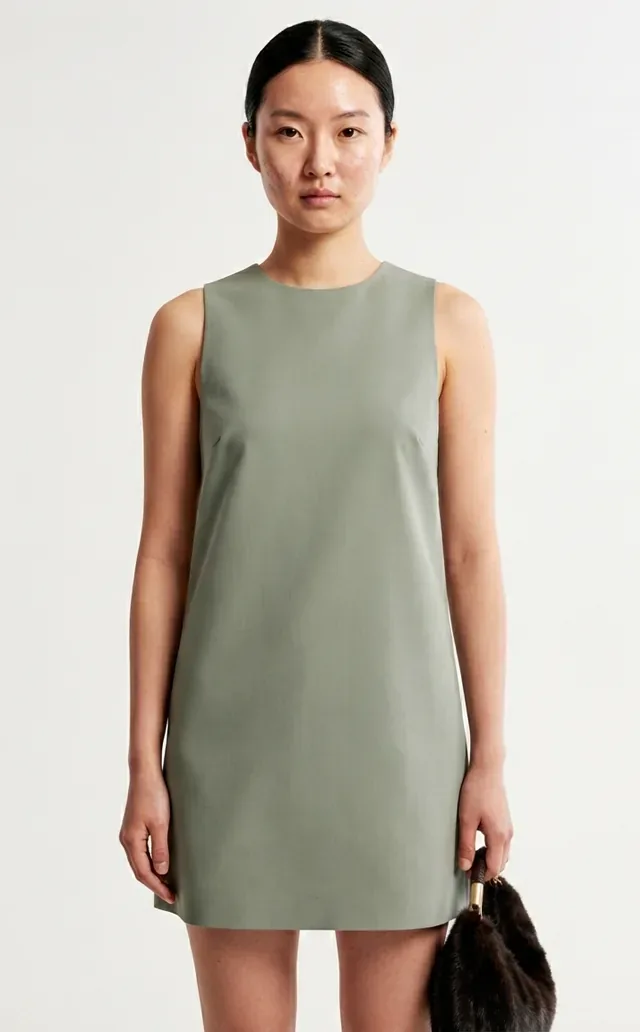 Studio
Is the Shopify app free?
Installing it costs nothing, and the first 3 AI images are free. After that, the Growth plan puts 160 credits in the account every 30 days for $29.99, billed through Shopify.
Does it work with Shopify Plus?
Yes. The app uses the standard Shopify Admin API and works on every Shopify plan, Plus included.
Do I need a photographer or a model?
No. Fashio works from the product photo you already have — a flat lay, a mannequin shot, even a phone picture on a hanger. The model is generated.
Where do the buttons appear?
In the More actions menu on a product page. There is no second dashboard to learn and no settings screen to configure.
Will it change my product pages by itself?
No. Results stay in the app until you press Add to product on a specific image. That press is the only thing that touches your store.
What happens if I uninstall it?
The app's access to your store is deleted immediately and Shopify cancels the subscription. Images you already added remain on your products — they are your product media now.
How does pricing work for Shopify users?
Everything runs on Shopify Billing, so it appears on your regular Shopify invoice rather than as a separate charge. Growth is $29.99 every 30 days for 160 credits; Scale is $99.99 for 600. One-time packs of 40, 120 or 400 credits cost $9.99, $27.99 and $84.99. Plan credits reset on renewal, pack credits never expire, and you can switch or cancel the plan from inside the app.
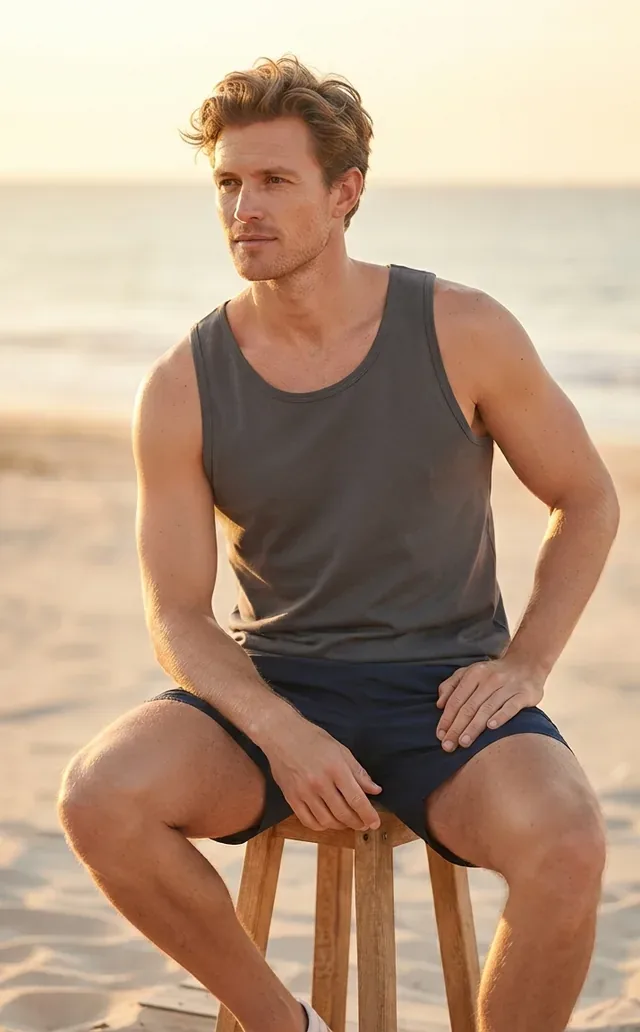 Outdoor
How does the app handle a large catalog?
With the Bulk Editor on the app home. Pick the products, choose one photoshoot set or one style tool, and the app works through them one product after another — every product gets the same model, setting and look, so the output stays consistent from the first SKU to the last. Results appear under each product's row and are added only when you press Add to product.
Does it work with Shopify Markets and multi-currency stores?
Yes, because the app writes to product media rather than to a storefront. An image added to a product appears wherever that product is published, across every market and currency. The app does not touch translations or SEO metadata, so anything you have localised stays exactly as you set it.
Can I undo it if I don't like the result?
Your original product photos are never modified or replaced — a generated image is added alongside them. If you do not want one, remove it from the product's media in Shopify the same way you would any other image. Results you never press Add to product on are simply not there in the first place.
How Fashio Compares to Other Shopify Photography Apps
 Campaign
| Capability | Fashio AI | Generic photo apps | Manual photography |
|---|---|---|---|
| Built for garment photos | ✓ | ✗ | n/a |
| AI model generation | ✓ | ✗ | Hire models |
| Background removal | ✓ | Partial | Manual editing |
| Works from a product page | ✓ | Varies | n/a |
| Bulk run over many products | ✓ Bulk Editor | Some | Impossible |
| Adds images to the product | ✓ one press | Some | Manual upload |
| Writes alt text and SEO metadata | ✗ | Some | Manual |
| Cost per image | ~$0.75 on Growth | Varies | $50–$300 per SKU |
One row there is deliberately marked with a cross. Fashio does not write your SEO — if that is what you need, another tool will serve you better, and it is cheaper to know that now than after installing.
The differentiator is focus. General photography apps treat a t-shirt the same as a kitchen blender. Fashio is a pipeline built for garment photos — on-model shots, try-on, ghost mannequin, lingerie — so the tools are shaped around what apparel listings actually need.
Setting Up the Shopify Integration
From install to first generated image is a few minutes:
- 01
Install the app.
Find Fashio AI Studio on the Shopify App Store and install it. It asks for one permission: read and write products. Nothing else in your store is exposed.
- 02
Start with the free images.
Your Fashio account is created automatically — no sign-up form, no API key. The first 3 AI images are free; when you want more, choose Growth or Scale in the app and approve the charge on Shopify's own screen.
- 03
Open a product.
On any product page, open More actions and choose Generate with Fashio or Catalog shoot with Fashio.
- 04
Pick a source photo and a look.
The app shows the product's existing images; choose which to work from, then pick a tool, a model, a setting and a pose.
- 05
Generate, then add what you want.
Results appear in the app. Each has Add to product and Download. Only the ones you add reach your store.
Use Cases by Fashion Category
MenswearThe integration is built for the breadth of fashion categories sold on Shopify:
- Apparel (tops, dresses, outerwear) — Turn flat lays into on-model shots with a model of your choosing. Pair with virtual try-on for size-inclusive product pages.
- Footwear — Generate on-foot photography from product-only shots, several angles per SKU without re-shooting.
- Accessories (bags, jewellery, watches) — Use product-to-model to place jewellery on a realistic model, or show a bag being carried rather than sitting on white.
- Intimate apparel — The bra and lingerie generator handles this category with a dedicated lingerie pipeline that accepts intimates (general image models flag them as NSFW and refuse).
- Activewear — Dynamic poses, athletic body types and motion-implied shots via pose variation.
Workflow Examples
Street- 01
New product launch.
A few flat lays land each morning. You open each product, run a try-on generation, add the two you like, and the listing is live before lunch — no photographer booked, no shoot scheduled.
- 02
Seasonal collection.
Generate one product the way you want it, press Save this look, then work through the rest of the collection applying that saved look. Every SKU shares the same model, setting and lighting, so the collection page reads as one shoot rather than a mix.
- 03
Catalogue refresh.
Select the products photographed years ago in the Bulk Editor and run them as one job. Because originals are never replaced, you can add a modern shot and reorder it to the front while keeping the old image as a secondary.
- 04
Marketplace requirements.
Use background removal for a clean white background and reframe to hit a specific aspect ratio, then add the result to the product. The reformatting is yours to run per image, not an automatic pass.
Why Brands Move Off Traditional Shoots
StudioTeams that switch from photo studios to Fashio usually give the same three reasons:
- 01
Speed.
A shot that needed a booked studio, a model and a turnaround week is generated in one run, without a photoshoot. New product launches stop waiting on photography.
- 02
Consistency.
Reusing one saved look across a collection keeps it visually coherent — no catalogue where half the shots look studio-quality and the rest look like phone snapshots.
- 03
Cost.
On the Growth plan a generated image works out around $0.75. Set that against studio time, a model's day rate and retouching for the same shot, and the arithmetic makes itself.
What it does not replace is judgement. You still choose the model, the setting and which of the results is good enough to publish — the app just removes the production step between the idea and the image.
Related Resources
Outdoor- How to Install the Fashio Shopify App — Step-by-step setup, permissions and your first image.
- Shopify Product Photography with AI: Complete Guide — Pillar guide on AI photography workflows for Shopify stores.
- AI Product Photography: Complete Ecommerce Guide — Cross-platform pillar on AI ecommerce photography.
- 12 Best AI Tools for Fashion Brands in 2026 — 12 fashion AI tools compared on published prices, free tiers, licences and APIs.
Ready to try it on one product? Install Fashio AI Studio on Shopify →