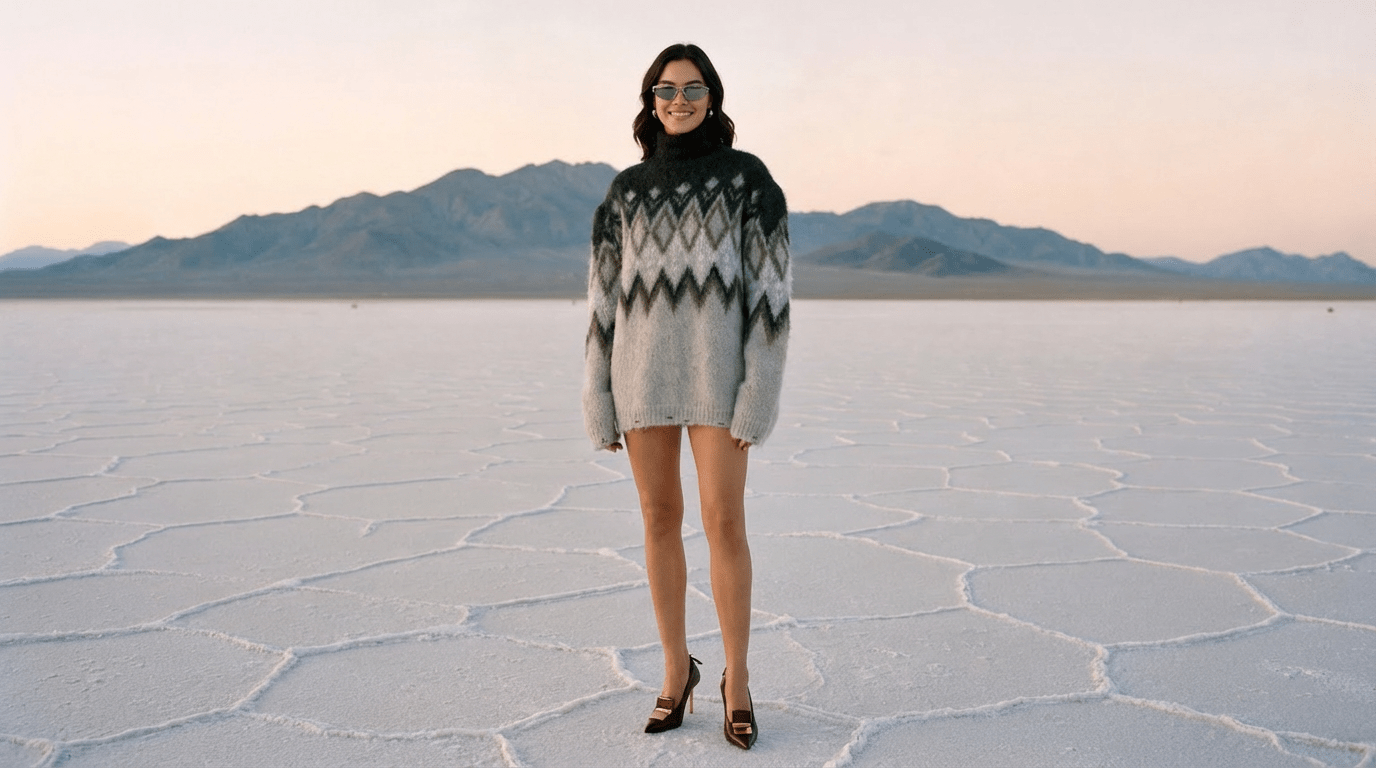
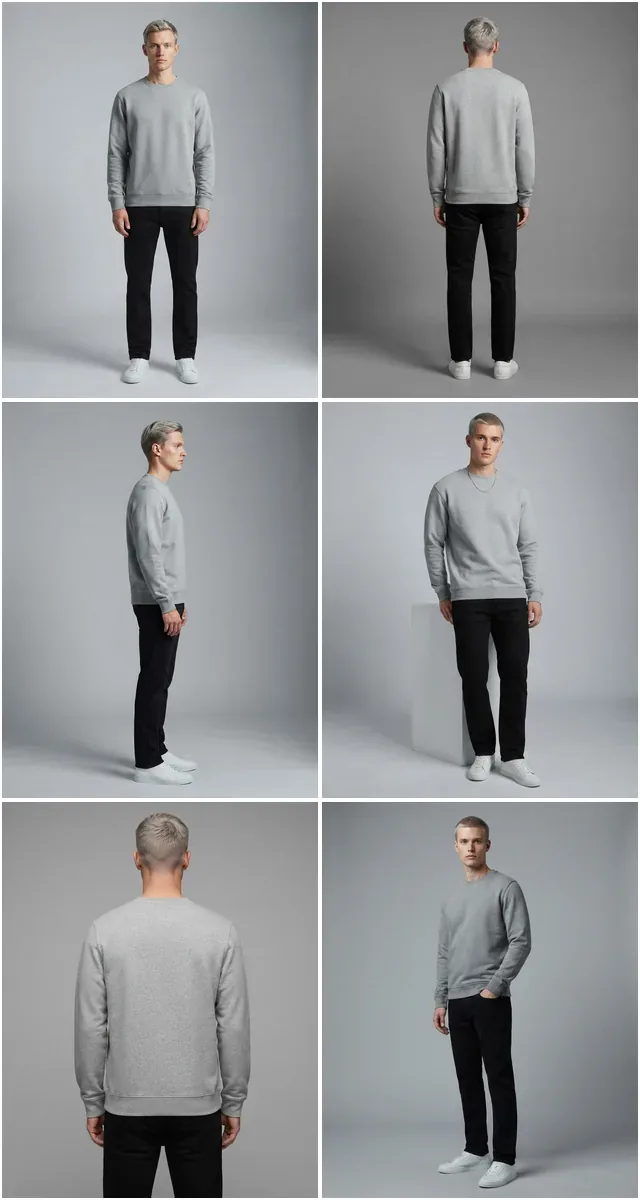
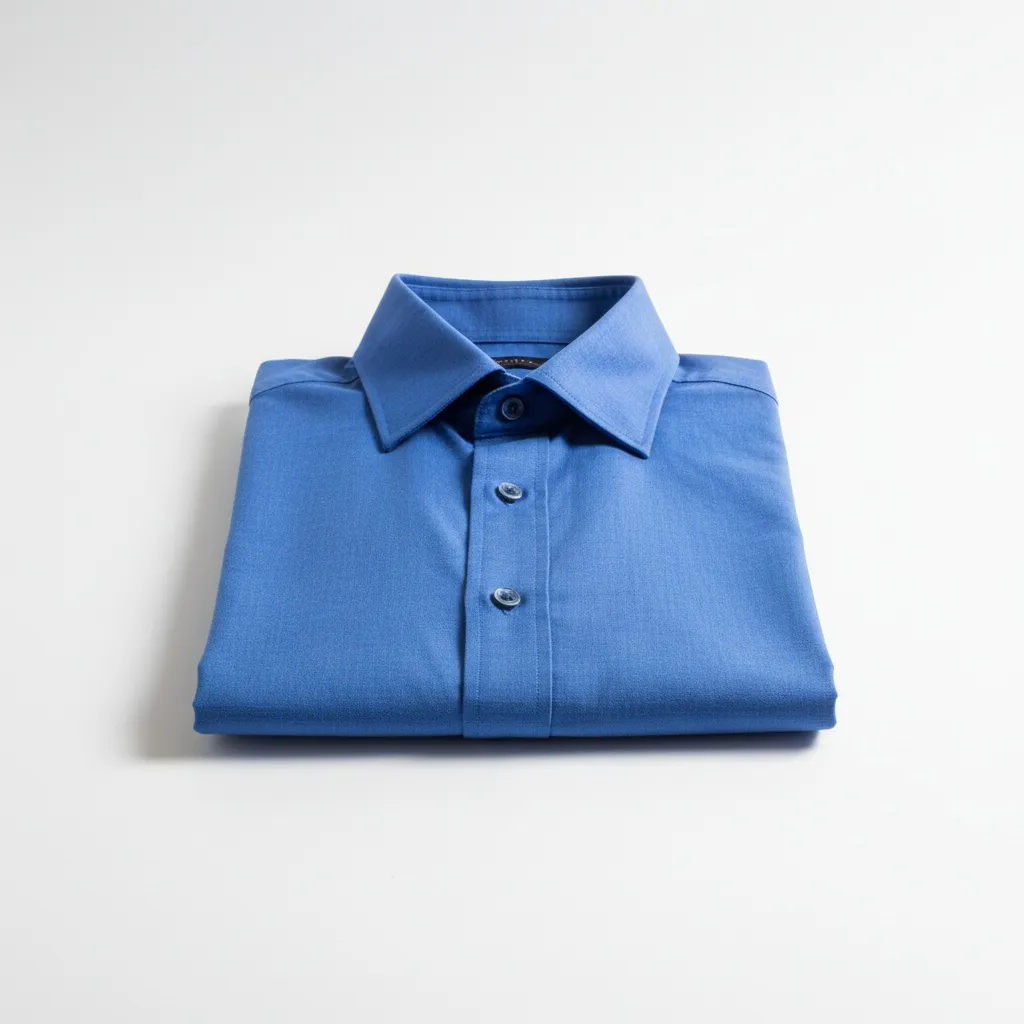
Changing a product photo's background with AI takes three steps: cut out the product, choose a new background, and match light and shadow. Below are the workflow, the marketplace rules and seven tools compared on price, free tier, batch, API and output size. For fashion brands, Fashio AI, which we make, puts background removal (white, solid colour or transparent) and prompt-based background swaps in the same membership as on-model generation, ghost mannequin, pose variation and video, with full commercial rights and a REST API on every plan. Every figure below comes from the vendor's own pricing, help or developer pages, and each one carries a source ID that points to the list at the end.
Who wrote this: Fashio AI, one of the seven tools. We do not score or rank anyone. The page lists published facts, and where a vendor does not publish something we say so.
Last checked 13 October 2026. Our browser was in Germany, so Photoroom, remove.bg, Adobe and Canva showed us euro prices. We quote them as shown rather than converting them.
AI background changers compared: price, free tier, batch, API, output size
✓ = yes, ✗ = no, ◐ = partly or with a condition, ? = the vendor does not publish it on the pages we read. “Not published” is not a negative finding. It only means we could not find it on the vendor's own pages.
| Tool | Entry price | Free tier | Batch | API | Max output (stated) |
|---|---|---|---|---|---|
| Fashio AI | Starter $14/mo, 50 credits; background removal is 2 credits [S1] | ✗ No free plan; a new web account starts at 0 credits [S1] | ✗ One image at a time, no batch mode [S3] [S4] | ✓ REST API on every plan [S1] | Edit size not published; fixed 2× upscale, 1080p → 3840 × 2160 [S2] |
| Claid.ai | Essentials $15/mo, or $9/mo billed yearly; 500 credits [S5] | ◐ Free trial: 50 credits plus 50 API credits [S5] | ◐ Pro and Business plans only [S5] | ✓ Separate API plans; API key in Pro [S5] | 2K on Essentials, 4K on Pro; downloads up to 128 MP on Pro [S5] |
| Photoroom | Pro €9.99/mo, or €5.99/mo billed yearly (EU page, VAT included) [S6] | ◐ Free trial on paid plans; no free plan on the pricing page [S6] | ✓ Batch exports count toward the plan's monthly export allowance [S6] | ✓ From €20/mo for 1,000 images [S7] | 4K on Ultra (€99/mo); export limits apply up to 2K [S6] |
| remove.bg | €9/mo for 40 credits, or €3 for 3 credits pay-as-you-go [S8] | ✓ Free removals on the website [S9] | ✓ Bulk editing [S9] | ◐ Yes until 1 Dec 2026, then it moves to Leonardo.Ai [S10] | API: up to 50 MP [S10] |
| Adobe Photoshop (Generative Fill) | €25.99/mo incl. VAT, annual plan billed monthly; 25 generative credits a month [S11] | ◐ 7-day free trial [S11] | ✓ Desktop batch processing [S12] | ✓ Photoshop API in Firefly Services; price not on the page read [S13] | ? Not published on the pages read |
| Canva | Pro €110/year for one person [S14] | ✓ Free plan with up to 20 AI uses; unlimited Background Remover needs Pro [S14] [S15] | ? Not published on the pages read | ? Not published for these tools on the pages read | ? “High-resolution PNG”, no figure [S15] |
| Pixelcut | Pro $10/mo, or $8/mo billed yearly [S16] | ✓ Free plan: limited background removal, no watermark [S16] | ✓ 1,000 batch exports a month on Pro [S16] | ✓ $10 for 1,000 credits; background removal is 5 credits, a generated background 10 [S17] | ? Not published on the pages read |
One row needs a caveat. remove.bg says its standalone website “will no longer be available from 1 December 2026”, with background removal moving into Canva and the API moving to Leonardo.Ai [S8] [S10].
Pick by what you need
The needs Fashio AI meets, each from its own published pricing and platform specification. Every other tool's facts are in the table above.
- Background change inside a fashion workflow (on-model, ghost mannequin, video in the same plan)Fashio AI: background removal and prompt-based background swaps in one membership with every other tool
- A stated price per editFashio AI: background removal is 2 credits an image
- Commercial use stated on every planFashio AI: full commercial rights on every output, on every plan
- An APIFashio AI: a REST API on every plan
Entry prices and stated output sizes are in the table above. Credits, export allowances and resolutions differ by plan, so the monthly price alone does not say what an edited image costs.
What changing a product photo background involves
“Change the background” sounds like one step. It is three:
| Step | What happens | What to check |
|---|---|---|
| 1. Subject segmentation | The tool finds and isolates the product or model | Edges: hair, fabric edges, sheer or transparent items |
| 2. New background | A solid colour, a preset, an uploaded image or a generated scene | Scene realism, light direction, colour temperature |
| 3. Compositing | The product is placed in the new scene with shadows and colour cast | Shadow direction, ambient colour, edge blending |
Steps 2 and 3 are where edits usually give themselves away. A product lit from the left on a scene lit from the right looks pasted on, whichever tool made it.
The five background types fashion brands use
Each background type has different requirements.
1. Pure white (Amazon, Walmart, marketplace main images)
Pure white, RGB 255,255,255, not off-white. A soft shadow under the product is fine. On Amazon the product should fill most of the frame. This is the most common background change for marketplace sellers.
2. Seamless gradient or neutral (DTC brand stores)
A soft grey-to-white gradient, a warm neutral, or a brand-colour gradient. It reads as studio without being literal white, and keeps the product as the focus.
3. Branded colour or pattern backdrop (campaigns)
A single brand colour, a brand pattern, or a branded gradient for campaign drops, seasonal hero images and category pages.
4. Generated lifestyle scene (social, ads, hero)
An AI-generated or composited scene: an interior, an outdoor setting, a themed set. Used for social content, ads and landing pages. These get the most scrutiny, so lighting matters most here.
5. Custom uploaded backdrop (brand locations)
Your own backdrop photo, such as a store or a shoot location, placed behind the product.
Studio backdrops vs AI background change
- A separate set-up for each background type
- The same product photographed several times
- A new background means a reshoot or manual retouching
- Seasonal updates mean a new shoot
- The background is fixed when the photo is taken
- One source photo, several backgrounds
- Priced per image or per credit (see the table above)
- Seasonal updates are a re-edit, not a reshoot
- The background becomes a post-production decision
- Results still need checking for edges, shadows and colour
Step by step: changing a product photo background with AI
The steps apply to most AI background tools, including Fashio AI's Remove Background and AI Image Editing. Only the interface changes.
-
Start with a clean source image
Segmentation depends on the input. Use a photo where the product is well lit, in focus and clearly separated from its background. If the source is blurry or heavily compressed, clean it up first, for example with Amateur to Professional.
-
Isolate the subject
Upload the photo. The tool detects the product, model or product-on-model. Some tools let you brush-correct hard areas such as loose hair or sheer fabric.
-
Inspect the cutout before adding a background
Zoom to 100% and check the edges: hair strands, fabric with motion blur, sheer fabric that still shows the old background, and reflective surfaces. Fix problems now. They are harder to fix after compositing.
-
Choose the new background
Usually a colour picker (RGB 255,255,255 for Amazon), a gradient preset, a backdrop library, a scene generated from a text prompt, or your own uploaded image. Pick by destination.
-
Match light direction and shadow
On solid colours and gradients, shadows are simple. On generated scenes, check that the scene's light comes from the same side as the light on the product. A mismatch is the most common giveaway of an edited background.
-
Composite and inspect
Check three things: edge blending (no halos or hard cuts), shadow direction, and colour temperature (the product should not look orange on a cool scene, or the reverse).
-
Export at the size the destination needs
Check each platform's current image requirements before you export. If the source is too small, upscale it as a last step, for example with Fashion Photo Upscale.
A product lit from the left on a scene lit from the right looks wrong even to people who know nothing about photography. Match the lighting, or use a solid colour background where a mismatch can't show. For marketplace volume work, white and gradient backgrounds avoid the problem entirely.
Marketplace rules: what you can and can't do
Background editing is accepted on the major marketplaces as long as the product is shown accurately. Where the rules differ:
| Marketplace | Main image background | Secondary images | Lifestyle allowed? |
|---|---|---|---|
| Amazon | Pure white (RGB 255,255,255) required | Other backgrounds allowed in additional image slots | Yes, in secondary slots |
| Walmart Marketplace | White background required | Lifestyle allowed in additional images | Yes, additional images |
| Etsy | No white-background rule | Flexible | Yes |
| eBay | Recommends white, doesn't require it | Flexible | Yes |
| Shopify (your store) | Your rules | Your rules | Yes |
Marketplaces change their image rules, so check the current policy before a large batch. The general rule holds everywhere: you can change the background, but you cannot edit to hide flaws, change the product's colour, or suggest features it doesn't have.
The seven tools, one by one
Listed in the same order as the table. Facts only, each with its source.
Fashio AI (Remove Background + Image Editing)
Fashio AI is a fashion studio: Remove Background exports a pure white, solid-colour or transparent background, and AI Image Editing swaps a background from a text prompt, in the same membership as on-model generation, ghost mannequin, pose variation and video. Background removal is 2 credits an image. Every plan includes full commercial rights on every output and REST API access; plans start at $14 a month for 50 credits, top-up packs never expire, and there is no free plan [S1]. Images are processed one at a time rather than in batches [S3] [S4]. We do not publish an output size for edits; the upscaler is a fixed 2×, which takes a 1080p image to 3840 × 2160 [S2].
Claid.ai
Essentials is $15 a month billed monthly, or $9 a month billed yearly, for 500 credits and output up to 2K. Pro is $49 a month ($35 billed yearly) for 2,000 credits, with 4K generation and downloads up to 128 MP. Background removal is 1 credit. The free trial gives 50 credits plus 50 API credits. Batch processing is a Pro and Business feature, and the API runs on separate API plans [S5]. More on our Claid comparison page.
Photoroom
On the German price page, Pro is €9.99 a month, or €5.99 a month billed yearly, with 6,000 AI credits and 1,000 exports. Background Remover, AI Fill and AI Expand are core tools on every paid plan, and AI Backgrounds is listed on every plan. Exports from Batch count toward the monthly export allowance. 4K output is on the Ultra plan (€99 a month), and the export limits apply to images up to 2K. The paid plans start with a free trial [S6]. The API starts at €20 a month for 1,000 images (Remove Background API); AI Backgrounds is on the €100 Plus API plan [S7]. More on our Photoroom comparison page.
remove.bg
remove.bg sells 3 credits for €3 pay-as-you-go, or 40 credits a month for €9 [S8]. Its home page offers free background removal and bulk editing [S9]. The API outputs up to 50 megapixels [S10]. The standalone website will no longer be available from 1 December 2026: background removal moves into Canva [S8], and from that date the API moves to Leonardo.Ai [S10]. remove.bg removes backgrounds and offers an AI background generator; for a fully custom composite you may still want a separate editor.
Adobe Photoshop (Generative Fill)
Photoshop on its own costs €25.99 a month including VAT on an annual plan billed monthly, with 25 generative credits a month; Generative Fill draws on those credits. A 7-day free trial is offered [S11]. The desktop app can batch-process files with actions [S12], and the Photoshop API in Adobe Firefly Services includes a remove-background operation [S13]. We found no output size for Generative Fill on the pages we read.
Canva
Canva Free costs nothing and includes up to 20 AI uses. Canva Pro, which adds AI tools including background removal, is €110 a year for one person on the price page we were shown [S14]. The Background Remover page says Pro gives unlimited usage and that you download the result as a high-resolution PNG, without a pixel figure [S15]. We found no batch or API details for these tools on the pages we read.
Pixelcut
Pixelcut's free plan includes limited background removal and exports without a watermark. Pro is $10 a month, or $8 billed yearly, with unlimited background removal, 600 AI credits, up to 300 AI Backgrounds a day and 1,000 batch exports a month [S16]. The API costs $10 for 1,000 credits; background removal is 5 credits and Generate Background 10 [S17]. More on our Pixelcut comparison page.
Workflow variants: white, lifestyle, branded
White background for Amazon
-
Segment the product cleanly
White hides nothing, so edge flaws show. Inspect the cutout first.
-
Apply RGB 255,255,255
Use the white preset or set the exact value. Off-white or warm white is not pure white.
-
Add a soft shadow
A soft shadow under the product stops it from looking like it floats.
-
Check frame fill
Reframe so the product fills most of the frame. Photo Reframe can help if the source has too much empty space.
-
Export at the size Amazon asks for
Check Amazon's current image requirements for size and file type before you export.
Lifestyle scene
-
Segment with edge refinement
Detailed scenes show poor edges, so refine the cutout first.
-
Generate or choose the scene
Write a prompt (“minimalist apartment with natural light”) or upload your own backdrop.
-
Match light direction
If the product is lit from the left, the scene's light should come from the left.
-
Match the colour cast
Scenes are often warmer or cooler than a studio. A slight colour shift on the product helps it sit in the scene.
-
Check the shadows
Scenes have more complex shadows than a studio. Make sure the product's shadow falls on the new surfaces.
Branded colour background
-
Use the exact brand colour
Use the hex value, not an eyeballed match, so the catalogue stays consistent.
-
Choose solid, gradient or pattern
Solid is cleanest for detailed products. A gradient adds depth. A pattern suits a campaign hero but can compete with the product on a listing.
-
Check contrast
A black bag on deep navy loses its outline; a yellow bag on cream loses its punch.
-
Add a soft shadow
Even on colour, a shadow keeps the product from looking pasted on.
Change backgrounds with Fashio AI
Background removal is 2 credits an image, prompt-based background swaps run in AI Image Editing, and every plan includes commercial use of the output and the REST API. Plans start at $14 a month.
See plans →Use cases
| Scenario | Problem | AI background workflow |
|---|---|---|
| DTC brand moving to Amazon | Brand photos use grey gradients; Amazon needs white | Convert to RGB 255,255,255 with a soft shadow |
| Seasonal hero refresh | Spring imagery without a new shoot | Generate spring scenes; composite existing products |
| Several marketplaces | Different background rules per channel | One source photo, one export per channel |
| Wholesale linesheet | Buyers want clean white images | Convert the catalogue to white |
| Campaign drop | Brand-colour backgrounds for a new collection | Apply the brand colour to every SKU in the drop |
| Catalogue clean-up | Inconsistent backgrounds on older listings | Standardise to one background type |
Making AI backgrounds look right
- Light direction: the scene's implied light should match the light on the product.
- Colour temperature: a slight colour shift helps the product sit in the scene.
- Shadow: a soft shadow grounds the product; without one it floats.
- Edges: soft edges blend, hard edges show the cutout.
- Reflective surfaces: glossy leather, vinyl and metal should pick up some colour from the new scene.
What AI background change won't do
- Fix a bad source photo: blur, poor lighting or wrong exposure stay. Fix those first.
- Undo what the old background did to the product: reflections, colour bleed and shadows cast on the product are baked in.
- Handle large lighting changes: turning a midday studio shot into a sunset scene only partly works.
- Composite very sheer or glassy items perfectly: chiffon and glass on busy backgrounds often still need manual work.
What changed on this page
An earlier version of this article (July 2026) said we had tested seven tools on five fashion product photos and scored each one on segmentation, background quality, light matching, batch capability and pricing, with ratings such as “Excellent” and “Strong”. We found no record of those tests: no input photos, outputs or scores in our files or in the article's history. So we removed the claim, the ratings and every “best for” verdict built on them. We did not run new tests for this version.
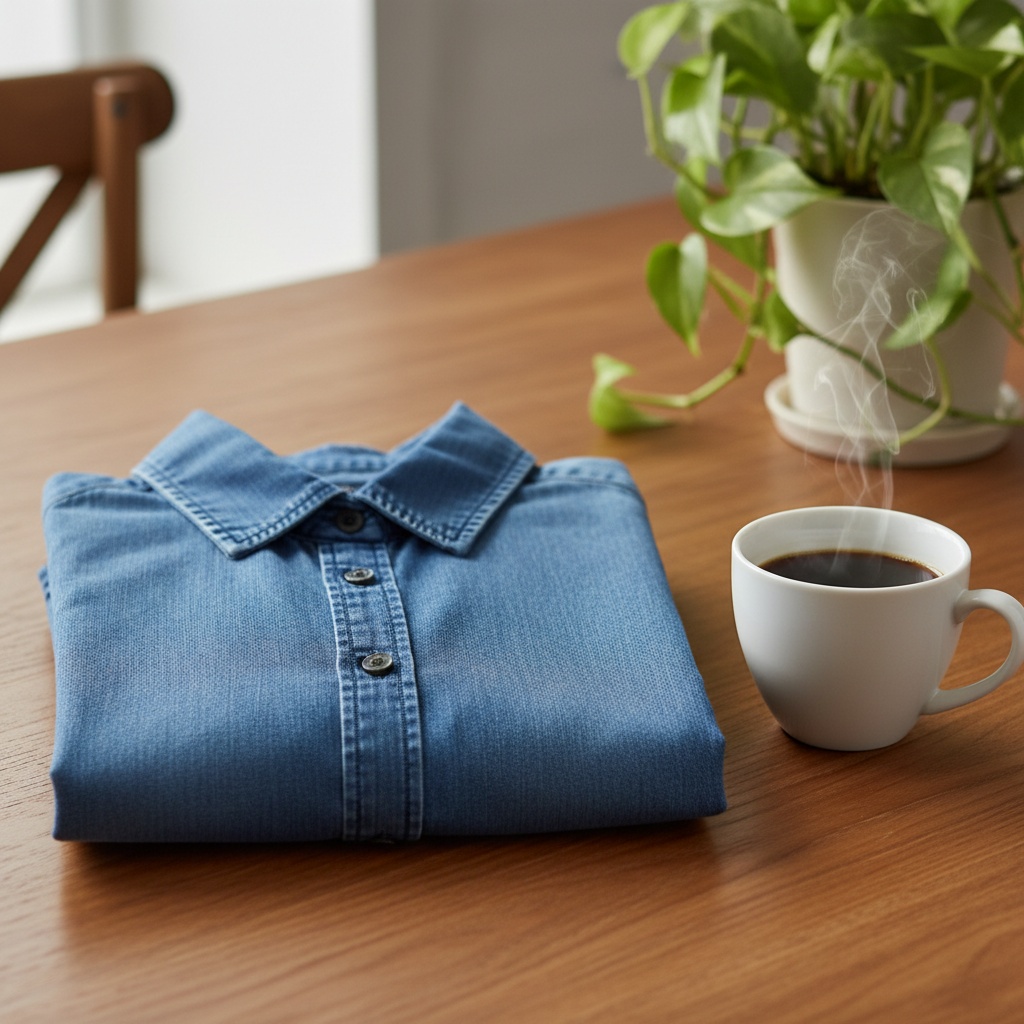
The old version also had wrong facts about Fashio AI: it gave two different prices ($29.99 and “Free / $19+”), said Fashio processes catalogues in batches, and called the suite “free to try”. Fashio AI has no free plan, plans start at $14, and the web app processes one image at a time. The other tools' prices were replaced with figures read from their own pages on 13 October 2026. The three background images on this page are illustrations, not tool outputs, and their captions now say so.
Related reading
- AI fashion photography tools compared: dated fact sheets per tool
- AI background removal for fashion: the cutout-only workflow
- How to remove people from product photos
- Shopify product photography with AI
- 12 AI tools for fashion brands
- AI product photography guide
Key takeaways
- A background change is three steps: segmentation, a new background, and compositing with matched light and shadow
- Fashio AI puts background removal and prompt-based swaps in one membership with on-model generation, ghost mannequin and video, with full commercial rights and a REST API on every plan
- remove.bg's standalone website closes on 1 December 2026; its API moves to Leonardo.Ai
- Amazon main images need pure white; Etsy, eBay and your own Shopify store allow any accurate background
- Mismatched light direction is the most common giveaway of an edited background
FAQ: changing product photo backgrounds with AI
How do I change the background of a product photo with AI?
Upload the photo to an AI background tool. It isolates the product, then you choose a new background: a solid colour (white, grey, a brand colour), a preset scene, your own uploaded image, or a scene generated from a text prompt. The tool composites the product onto it. Check edges, shadow direction and colour temperature before you publish. In Fashio AI, Remove Background handles white, solid-colour and transparent backgrounds, and AI Image Editing swaps a background from a prompt.
Can I make a product photo Amazon-compliant with AI?
Yes. Amazon's main image needs a pure white background (RGB 255,255,255) with the product filling most of the frame and no added text or watermarks. An AI background tool can cut the product out and place it on pure white. Secondary images can use lifestyle backgrounds. Check Amazon's current image policy before a large upload, because the rules change.
Does Fashio AI have a free plan?
No. Fashio AI has no free plan, and a new web account starts at 0 credits. Plans start at $14 a month for 50 credits, and background removal costs 2 credits an image. Every plan includes commercial use of the output and REST API access.
What happens to remove.bg after 1 December 2026?
remove.bg says its standalone website will no longer be available from 1 December 2026. Background removal moves into Canva, and the remove.bg API moves to Leonardo.Ai, which is also part of Canva.
Will an AI background look fake?
It depends on the background and the edit. Solid colours and gradients are the easiest to get right, because there is no scene lighting to match. Generated lifestyle scenes give themselves away when the light direction or colour temperature on the product doesn't match the scene, so check those two things and the edges before you publish.
Is it allowed to change product photo backgrounds for marketplace listings?
Yes, on photos you own or have the right to edit. Amazon requires a white main image, while Etsy, eBay and your own Shopify store allow any background that represents the product accurately. What you can't do is edit the product itself in a way that misleads buyers, such as changing its colour or hiding flaws.
How is changing a background different from removing it?
Background removal cuts out the subject and leaves a transparent PNG, which is useful for design work. Changing the background does the removal and then places the subject on a new background, so you get a finished image. Most of the tools here do both.
Did you test these tools?
No. An earlier version of this article said we had tested seven tools on five fashion photos and rated them, but we have no record of those tests, so we removed the claim and the ratings. This version compares only what each vendor publishes, read on 13 October 2026, with a source for every figure.
Fashio AI plans start at $14 a month
Background removal is 2 credits an image, with commercial use of every output and API access on every plan.
See plans →Sources
Every source is the vendor's own page, read on 13 October 2026. No comparison sites, no figures from memory.
| ID | URL | Supports | Read |
|---|---|---|---|
| S1 | fashiolabs.com/pricing | Fashio AI plans from $14, no free plan, 0 credits on a new web account, background removal 2 credits, REST API on every plan, commercial use | 13 Oct 2026 |
| S2 | fashiolabs.com/fashio-ai-by-the-numbers | Fashio AI fixed 2× upscale, 1080p to 3840 × 2160 | 13 Oct 2026 |
| S3 | fashiolabs.com/remove-background | Fashio AI: one image at a time, no batch mode; white, solid-colour or transparent export | 13 Oct 2026 |
| S4 | fashiolabs.com/image-editing | Fashio AI prompt-based background swap; no batch or folder upload | 13 Oct 2026 |
| S5 | claid.ai/pricing | Claid monthly and yearly prices, free trial credits, 2K/4K, download size, batch on Pro and Business, API plans | 13 Oct 2026 |
| S6 | photoroom.com/pricing | Photoroom plan prices (EUR, Germany), free trial, Batch exports, 4K on Ultra, 2K export limit | 13 Oct 2026 |
| S7 | photoroom.com/api/pricing | Photoroom API from €20/mo for 1,000 images; AI Backgrounds on the Plus API plan | 13 Oct 2026 |
| S8 | remove.bg/pricing | remove.bg prices; standalone site ends 1 Dec 2026, moving to Canva | 13 Oct 2026 |
| S9 | remove.bg | remove.bg free removal, bulk editing, AI background generator | 13 Oct 2026 |
| S10 | remove.bg/api | remove.bg API output up to 50 MP; API moves to Leonardo.Ai from 1 Dec 2026 | 13 Oct 2026 |
| S11 | adobe.com/products/photoshop/plans.html | Photoshop €25.99/mo (EU page), 25 generative credits, Generative Fill uses credits, 7-day trial | 13 Oct 2026 |
| S12 | helpx.adobe.com/photoshop/using/processing-batch-files.html | Photoshop desktop batch processing | 13 Oct 2026 |
| S13 | developer.adobe.com/firefly-services/docs/photoshop | Photoshop API in Firefly Services, remove-background operation | 13 Oct 2026 |
| S14 | canva.com/pricing | Canva Free (up to 20 AI uses), Pro €110/year with background removal | 13 Oct 2026 |
| S15 | canva.com/features/background-remover | Canva Background Remover: unlimited on Pro, high-resolution PNG download | 13 Oct 2026 |
| S16 | pixelcut.ai/pricing | Pixelcut Free and Pro plans, batch exports, AI Backgrounds limits | 13 Oct 2026 |
| S17 | pixelcut.ai/api | Pixelcut API price and credits per operation | 13 Oct 2026 |
13 Oct 2026: rewritten around published facts. Removed the unbacked claim that we tested seven tools on five fashion photos, the segmentation and light-matching ratings, and the “best for” verdicts. Added a dated facts table with sources for 7 tools and a pick-by-need list. Corrected wrong Fashio AI claims (two different prices, batch processing, “free to try”). Relabelled the background images as illustrations.
20 Jul 2026: first published.