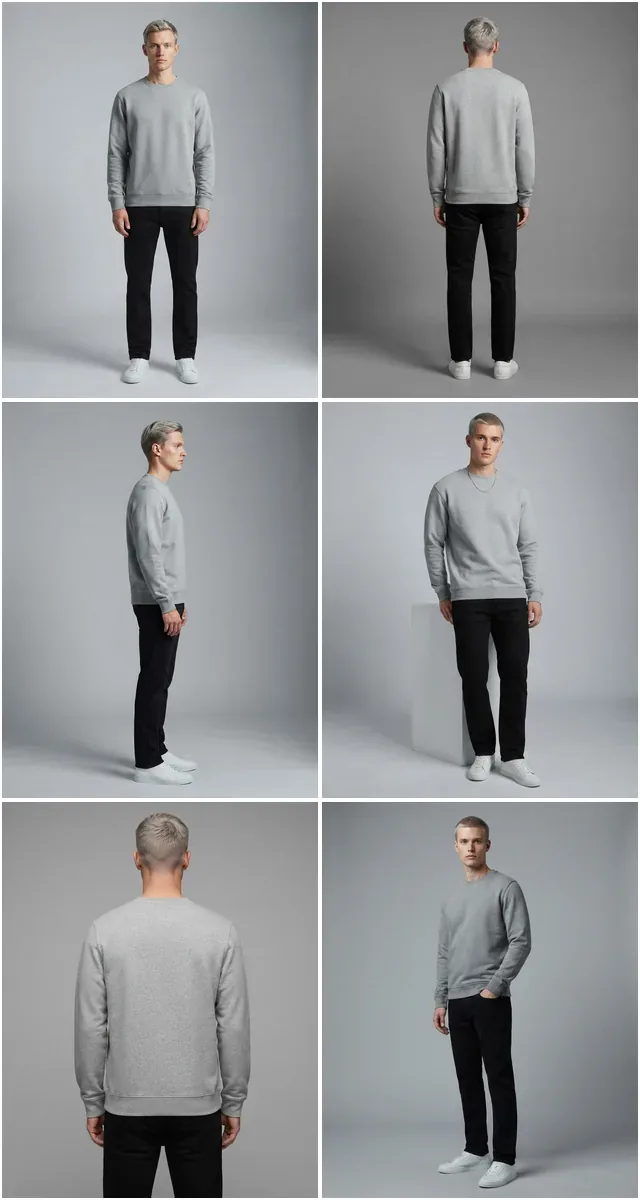
The 2026 Reality: People Removal Is a One-Click Job — But Only if You Know Where to Cut
5-15 sec per photo $0-50/mo vs $80/hr retoucher Batch 50-500 photos/session No reshoot required
Removing a person from a product photo used to mean an hour of clone-stamping in Photoshop. Modern AI inpainting reconstructs the background underneath in seconds — fabric, shadows, floor textures included.
Every ecommerce seller has the same problem at some point: there's a person in the photo who shouldn't be there. A photobombing customer in a store backdrop. A mannequin handler caught at the edge of a flat lay shoot. A leftover model from a lifestyle session whose face you can't license for retail. A bystander reflected in a glass display case. Reshooting is expensive. Hiding the person with a sticker or border is amateur. Until recently, the only real fix was a retoucher with a clone stamp and an hour of patience.
The AI person removal workflow has rewritten that math. A diffusion-based inpainting model can now identify a person in any product photo, mask them out, and synthesize plausible pixels for whatever was behind them — fabric folds, studio paper, wooden floors, repeating tile patterns — all in under 15 seconds. This guide walks through when to use AI person removal, the step-by-step workflow, marketplace compliance rules, the tools that actually deliver clean output for fashion product photography, and where you still need a real retouching pass.
When Sellers Actually Need to Remove People from Product Photos
The use cases break into five clear buckets. Knowing which one you're in determines the tool you reach for and the workflow you use.
| Scenario | What's Happening | Removal Approach |
|---|---|---|
| Photobomber in Background | Stranger walked into the frame during outdoor or in-store shoot | Single-pass AI inpainting; auto-detect person and remove |
| Handler in Flat Lay | Hand, arm, or torso visible at edge of overhead product shot | Brush mask the limb; AI fills in the surface beneath |
| Leftover Lifestyle Model | Lifestyle shoot model is unlicensed for ecommerce — keep the scene, lose the person | Manual mask of full body; multi-step inpainting for complex BGs |
| Reflected Person in Glass/Mirror | Photographer or assistant visible in product reflection | Targeted mask within reflective surface; reconstruct surface pattern |
| Crowd Cleanup for Lifestyle Hero Shot | Street-style or marketplace photo has unwanted crowd in background | Multi-subject removal; AI segment each person and inpaint in batch |
The common thread: every one of these used to require either a reshoot or a billable retoucher. None of them require either in 2026.

How AI Person Removal Actually Works
Understanding the technique helps you predict when it will work cleanly and when it won't. Modern AI removal is a two-stage pipeline:
Stage 1 — Segmentation
A computer vision model (typically SAM, YOLO, or a custom person-detection model) identifies the boundary of every human figure in the photo. Some tools auto-select all people; others ask you to brush or click to confirm which person to remove. Output is a precise mask covering the subject.
Stage 2 — Inpainting
A diffusion model receives the original photo with the person area masked out, and generates new pixels to fill that region based on the surrounding context. Modern inpainting doesn't just blur or clone — it synthesizes new content that matches the lighting, color, and texture of the rest of the image. For uniform backgrounds (studio paper, plain walls), it's essentially perfect. For complex backgrounds (patterned wallpaper, crowds, intricate fabric), the result varies.
Removing a person is segmentation plus inpainting. The segmentation part is reliable. The inpainting part is where AI quality differs — and where fashion-trained models beat generalist ones, because fabric, drape, and apparel-context backgrounds are what they've seen the most.
Traditional Retouching vs AI Person Removal — The Honest Comparison
- 45-90 minutes per photo for a clean clone-stamp removal
- $60-$120/hour for a skilled retoucher
- Requires Photoshop license and operator skill
- Batch jobs require manual repetition
- Quality depends on retoucher's eye and patience
- Revisions require full re-edit
- Edge artifacts common around hair, transparent fabric, shadows
- 5-15 seconds per photo from upload to clean output
- $0-$50/month subscription for unlimited removals
- Browser-based — no software install
- Batch processing supported on most platforms
- Quality consistent across the set
- Re-run instantly if first pass isn't clean
- Shadow and texture reconstruction handled automatically
The economics make traditional retouching only worth it for hero campaign images where every pixel matters. For volume product work, AI removal is the obvious default.
Step-by-Step: How to Remove People from Product Photos with AI
The workflow below applies to most modern AI removal tools, including Fashio AI's AI Image Editing. The principles transfer across platforms — only the UI changes.
-
Audit the Photo Before You Touch the Tool
Look at what's behind the person you want to remove. Is it a plain studio backdrop? A patterned wall? Another product? Open ground? The complexity of the background dictates whether you'll get a one-pass clean output or need a second cleanup round. Uniform backgrounds = trivial. Complex overlapping content = expect two or three iterations.
-
Upload to an AI Removal Tool
Use a fashion-trained editor like Fashio AI's AI Image Editing for product photo work, or a generalist tool for non-apparel scenes. Upload the photo at full resolution — don't downsize first, since the AI uses fine details to reconstruct the background.
-
Select the Person to Remove
Most tools offer two modes: auto-detect (the AI finds all people automatically) or manual brush (you paint over the area you want gone). For a single photobomber, auto-detect with a confirmation click works well. For multi-person scenes where you want to keep one and remove others, switch to manual brush mode to be precise.
-
Expand the Mask to Cover Shadows and Reflections
This is the step most people skip. The person's mask only covers their body, but they cast a shadow on the floor and possibly a reflection in glossy surfaces. Use the mask-expand tool to grow the selection to include these. If you leave the shadow, the photo will look like a person was deleted but their ghost remained.
-
Run Inpainting and Inspect
Trigger the removal. Most modern tools return a result in 5-15 seconds. Zoom in to inspect three things: the edges of the removal area (no halos or fringes), the texture continuity of the background (no obvious patches), and the shadow region (no leftover floor stain).
-
Iterate on Problem Areas
If a section doesn't look right, brush over just that region and run a localized inpaint. Diffusion models are stochastic — a second pass on the same area often produces a cleaner result. Three to five iterations is normal for complex backgrounds; one pass is normal for simple ones.
-
Final Color and Contrast Match
Diffusion inpainting sometimes shifts the brightness or color of the patched region by 5-10%. Use a quick auto-color adjustment over the touched area to blend it back into the surrounding scene. For ecommerce listings, this final pass is what separates "passable" from "indistinguishable."
If the person you're removing is overlapping another object (a table, a railing, a product), the AI will struggle to reconstruct both. Solution: first remove the overlap context using a clean photo of just the scene without people, then composite back if needed. Most ecommerce sellers don't have a clean-scene reference shot — which is why studio backdrops became the default for product photography in the first place.
What to Look for in an AI Person Removal Tool
Not every "remove background" tool handles people removal well. Here's what separates a tool worth paying for from one you'll fight with on every photo:
- Diffusion-based inpainting — Older tools use clone-stamp or patch-match algorithms that produce visible repetition. Diffusion-based inpainting synthesizes genuinely new pixels and handles complex backgrounds.
- Mask expansion control — You need to extend the mask beyond the person to cover shadows and reflections. Tools without this feature leave ghost artifacts.
- Resolution preservation — Some tools downsample to 1024px or 2048px and never return original resolution. For ecommerce 4K listings this is unacceptable.
- Multi-subject support — If you have a crowd to remove, the tool needs to handle multiple separate masks in one pass.
- Batch processing — Listing 100 SKUs? You need bulk upload, not single-photo workflow.
- Fashion-specific training — Tools trained on apparel imagery reconstruct fabric folds, drape patterns, and product backgrounds more accurately than generalist tools.
- Commercial license — Some free tools restrict commercial use. Read the terms before using output on a paid listing.
- Quality at the mask edge — Test with a photo where the person overlaps the product. Edge fringing is the biggest tell of a low-quality tool.
Marketplace Compliance — What You Can and Can't Remove
Photo editing rules differ by marketplace. Removing a bystander is fine on every platform; removing the person actually modeling the apparel changes the photo's meaning and can violate listing requirements.
| Marketplace | Bystander Removal | Model Removal | Notes |
|---|---|---|---|
| Amazon | Allowed | Allowed if converted to flat lay/ghost mannequin | Main image must be product on pure white BG; cannot misrepresent product |
| Etsy | Allowed | Allowed | No specific rule; accurate representation required |
| eBay | Allowed | Allowed | No people in main image unless they're part of the listing description |
| Shopify (your store) | Fully flexible | Fully flexible | Your store, your rules |
| Faire (wholesale) | Allowed | Allowed | Linesheet imagery often prefers on-model OR clean flat lay |
| Walmart Marketplace | Allowed | Allowed | Main image: product only, white BG, no text/watermarks |
The general rule: editing photos to be more accurate or cleaner is always fine. Editing photos to misrepresent the product (changing color, hiding flaws, adding features) is never fine on any marketplace.
Tool Comparison — Person Removal Tested on Fashion Product Photos
We tested seven popular tools on five fashion product photos: a model in a studio backdrop, a flat lay with a handler arm, a street-style shot with a photobomber, a mirror selfie with reflected photographer, and a crowd-scene lifestyle hero shot.
| Tool | Best For | Fashion Quality | Pricing |
|---|---|---|---|
| Fashio AI Image Editing | Fashion-specific cleanup, batch product photos | Excellent — fabric and drape reconstruction | Free tier; $19+/mo |
| Photoshop Generative Fill | Complex hero shots with manual control | Excellent | $22.99/mo (Creative Cloud) |
| Cleanup.pictures | Simple single-person removals, free tier | Good for plain BGs | Free / $9/mo |
| Canva Magic Eraser | Casual users with Canva subscription | Fair | $14.99/mo (Pro) |
| Adobe Express Remove | Quick consumer-level removals | Good | Free / $9.99/mo |
| Claid.ai | Ecommerce batch processing | Good — product-trained | $30+/mo |
| Picsart | Mobile-first removals | Fair — best for social, not ecommerce | Free / $7+/mo |
Across our five test photos, fashion-trained tools (Fashio AI, Claid) produced cleaner results on apparel-context backgrounds — fabric textures, studio paper, and product surfaces reconstructed more naturally. Generalist tools (Photoshop, Cleanup.pictures) were strong on plain backdrops but struggled with apparel-specific details like fabric drape and embroidery patterns behind the removed person.
Remove People from Your Product Photos in Seconds
Fashio AI's Image Editing handles photobombers, leftover models, mannequin handlers, and reflected crew in one pass. Fashion-trained, full commercial rights, one membership.
Start creating →Special Cases — When Person Removal Gets Tricky
The Person Is Holding the Product
You can't just remove the person if they're holding the dress, shoe, or bag — the product needs to be supported by something. Workflow: remove the person, then use a Mannequin to Flat Lay conversion to clean up the product into a standalone shot, or composite the product onto a clean backdrop using Remove Background.
The Person Is Wearing the Product
This isn't person removal — this is on-model to flat-lay conversion. Different tool, different workflow. Don't try to brush the person away; use a dedicated conversion that preserves the garment's drape and structure as it strips out the body.
Multiple People in Front of a Pattern
Patterned backgrounds (wallpaper, brand backdrop with repeating logos, tile floors) are the hardest case for AI inpainting. Best result: remove people one at a time with separate masks, run a localized inpaint for each, and accept that you may need a final manual touch-up to align the pattern seams. For wholesale linesheet work where this comes up often, shoot future content against plain backdrops where possible.
The Person Cast a Shadow on the Product Itself
Removing the person leaves the shadow on the product. Use a second pass with a shadow-removal tool, or re-light the product area using AI relighting available in AI Image Editing. For ecommerce, shadow on the product reads as poor photography even more than a visible person does.
Use Cases — Real Brand Scenarios
| Scenario | Problem | AI Removal Workflow |
|---|---|---|
| DTC Brand Listing Cleanup | Lifestyle photos have customers in background | Batch upload, auto-detect, remove non-model people, export |
| Marketplace Compliance | Amazon main image needs to be product only | Remove model from lifestyle hero, convert to flat lay or ghost mannequin |
| Influencer-Source Content Reuse | Brand wants to reuse influencer's photo of product without their face | Remove influencer (with permission), keep the scene and product |
| Vintage / Resale | Original photo from past owner has their face | Remove face/body, keep garment and backdrop |
| Trade Show Booth Photos | Booth photos have visitors blocking products | Remove visitors from product display shots for press kit |
| Store Window Display | Want to use window display photo without passersby | Multi-person removal in one batch pass |
What AI Person Removal Won't Do
To be honest about the limits: AI person removal isn't a fix for every photo with an unwanted person. Cases where you'll still need a reshoot or a manual retoucher:
- Person is the central subject of the photo — If the framing was built around them, removing them leaves an awkward empty composition that no inpainting can fix.
- Person occludes a product detail — If a hand is covering a key feature of the product (a label, a unique stitch, a logo placement), the AI will guess that area and may guess wrong.
- Extreme pattern interlock — Person standing in front of a wall mural or detailed mosaic; AI can't always recreate the original pattern accurately.
- Hero campaign images — For the brand's biggest images, where every pixel is scrutinized, a manual retoucher still produces a cleaner result.
For everything else — and "everything else" is most product photography volume work — AI person removal does the job in seconds at near-zero cost.
Fashio AI Tools for Cleanup and Editing
- AI Image Editing — person removal, object removal, background swap, scene cleanup
- Remove Background — isolate product from any backdrop including crowded scenes
- Mannequin to Flat Lay — convert on-model shots to flat lays when removing the model entirely
- Flat Lay to Catalog Creator — turn cleaned-up flat lays into full catalog assets
- Amateur to Professional — upgrade cleaned-up shots to studio-grade output
- Fashion Photo Upscale — restore resolution after heavy editing
Going Deeper — Related Reading
If you're refining your photo editing workflow for ecommerce, these guides cover adjacent techniques:
- AI Background Removal for Fashion: Complete Guide — the related but distinct background-only workflow
- 12 Best AI Tools for Fashion Brands in 2026 — broader tooling overview
- AI Product Photography Complete Guide — context on cleanup within the full ecommerce imagery pipeline
- Flat Lay to On-Model AI Workflow — the inverse use case
Key Takeaways
- AI person removal uses segmentation + diffusion inpainting to identify a subject and reconstruct the background underneath
- 5-15 seconds per photo vs 45-90 minutes for traditional clone-stamp retouching
- Works cleanly on uniform backgrounds; needs iteration for complex or patterned ones
- Marketplace compliance: removing bystanders is always fine; removing the actual model requires converting to flat lay or ghost mannequin
- Expand masks to cover shadows and reflections — most quality issues come from leftover shadow ghosts
- Fashion-trained tools like Fashio AI Image Editing reconstruct fabric, drape, and apparel-context backgrounds better than generalist tools
- For hero campaign images, a manual retoucher still beats AI; for volume product work, AI removal is the obvious default
Try the Full Fashio AI Editing Suite Free
Person removal, background swap, mannequin conversion, and 16 fashion-specific tools — all on one membership, with full commercial rights.
Start creating →FAQ: Remove People from Product Photos
How do I remove a person from a product photo?
Upload the photo to an AI removal tool, brush over the person you want to remove (or let auto-detect select them), and run inpainting to regenerate the background pixels underneath. Modern AI tools complete the removal in 5-15 seconds and reconstruct fabric, shadows, and floor textures automatically. For fashion ecommerce, Fashio AI's Image Editing handles common removal jobs in one click.
Can AI remove people without leaving artifacts?
Yes, when the area behind the person is relatively uniform — plain walls, even floors, repeated backdrops, or open scenes. AI struggles when the person occludes complex objects like detailed patterns, intricate fabric folds, or other product details. For clean studio backgrounds, AI removal is essentially indistinguishable from a reshoot.
Is it legal to remove people from product photos I post on marketplaces?
If you own the photo (or have rights to edit it), you can remove people freely. Marketplaces like Amazon, Etsy, eBay, and Shopify require product photos to be accurate representations of the product — removing bystanders, photobombers, or non-essential people does not violate this rule. Removing the person who was modeling the actual product, however, would change the photo's meaning and could affect listing compliance for apparel categories that require on-model shots.
What's the best free tool to remove people from photos?
Several tools offer free tiers: Cleanup.pictures (basic), Adobe Express, Canva Magic Eraser, and Fashio AI's Image Editing. For fashion product photos specifically, Fashio AI handles fabric textures, shadow reconstruction, and ecommerce backgrounds better than generic tools because it's trained on apparel imagery.
How do I remove a model from a product photo while keeping the clothing?
This is a different workflow — instead of removing the person, you're isolating the garment. Use a 'mannequin to flat lay' or 'on-model to flat lay' conversion: AI extracts the garment, removes the model body, and reconstructs the garment as a clean flat lay or ghost mannequin shot. Fashio AI's Mannequin to Flat Lay tool handles this conversion automatically.
Can I remove people from batch product photos at once?
Yes. Most professional AI editing tools support batch processing — upload a folder of photos, set the removal rules (auto-detect people, manual mask, or selected regions), and process the entire set. Fashion ecommerce platforms like Fashio AI optimize batch removal for product listings, handling 50-500 photos per session at consistent quality.
Will removed-person photos look obvious or fake?
Not with modern AI inpainting. The 2026 generation of removal tools uses diffusion models that synthesize plausible background pixels, not just blur or clone-stamp. On standard product photography backgrounds — seamless paper, studio walls, plain floors — removals are visually indistinguishable from a clean shot. Complex backgrounds with patterns or other people may require a second pass.
How is removing people different from removing the background?
Background removal cuts out everything except the subject — leaving the product (or product + model) on a transparent or new background. Person removal is the opposite: you keep the background and the product but delete a specific person. Both use AI segmentation, but person removal also reconstructs the pixels behind the deleted subject.