Why Smartphone Product Photography Works in 2026
The gap between a smartphone camera and a professional DSLR has never been narrower. In 2026, flagship phones ship with 200MP sensors, advanced computational photography, and ProRAW capture that gives you full control over exposure, white balance, and dynamic range. The hardware is no longer the bottleneck — technique is.
The numbers prove it. Brands using smartphone product photography with proper technique report:
- About $0.75 per generated image on the Plus plan, against studio work booked at day rates
- 5x faster time-to-listing for new products
- No measurable difference in conversion rates between well-shot phone photos and professional studio images
- Greater flexibility to reshoot and iterate without scheduling studios or photographers
Whether you're a solo Etsy seller, a growing DTC brand, or a marketplace vendor scaling to thousands of SKUs, your phone is now a legitimate product photography tool — if you know how to use it. This guide covers the DIY techniques that make the difference.
Phone Photography Basics: Lighting, Angles, and Backgrounds
Lighting Is Everything
No amount of AI can fully rescue a badly lit photo. Good lighting is the single most important factor in product photography, and the good news is you don't need expensive equipment to achieve it.
Option 1: Natural light. Position your product near a large window with indirect sunlight. Avoid direct sun — it creates harsh shadows and blown-out highlights. Overcast days produce the most even, flattering light. Place a white foam board on the opposite side of the window to bounce light and fill shadows.
Option 2: Budget softbox kit. Two softbox lights ($30-50 each) positioned at 45-degree angles to your product create clean, even illumination. This setup works regardless of time of day or weather, making it the better choice for consistent, high-volume shooting.
What to avoid: Overhead fluorescent or LED room lighting casts unflattering color tones and creates downward shadows. Mixed lighting (warm lamp + cool daylight) confuses white balance and produces color casts that are difficult to correct.
Angles That Sell
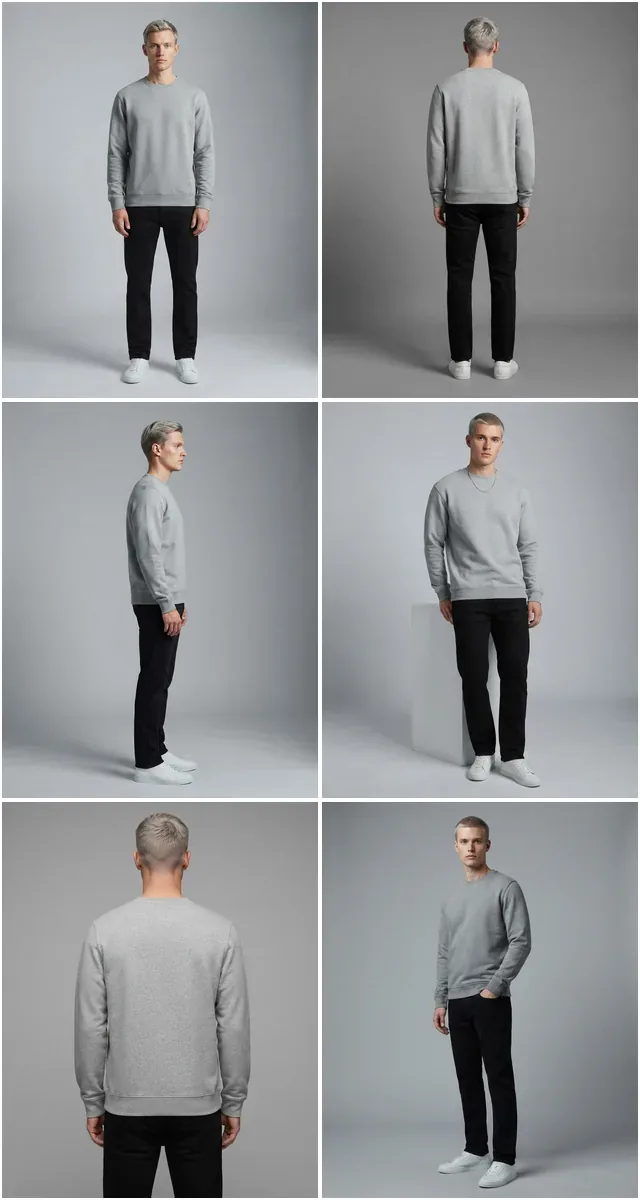
Ecommerce product photography follows predictable patterns because they work. For every product, capture these core angles:
- Front straight-on — the hero image buyers see first
- Back view — shows construction, labels, and details buyers want
- 45-degree angle — adds dimension and shape
- Detail close-ups — fabric texture, stitching, hardware, zippers, tags
- Flat lay — product laid flat from directly above, essential for clothing
Keep your phone parallel to the product surface for flat lays (shoot straight down) and at product height for straight-on shots. Tilting the phone creates perspective distortion that looks amateurish.
Background Setup
A clean white background is the ecommerce standard — and the easiest to achieve. A $15 roll of white seamless paper, a white poster board, or even a clean white bedsheet works. Curve the background from the surface up the wall to eliminate the visible seam between the surface and the backdrop.
That said, don't stress about a perfect background. AI background removal will strip it out entirely in seconds. What matters more is that your background is uncluttered and provides enough contrast for the AI to cleanly detect product edges.
Best Smartphone Settings for Product Photography
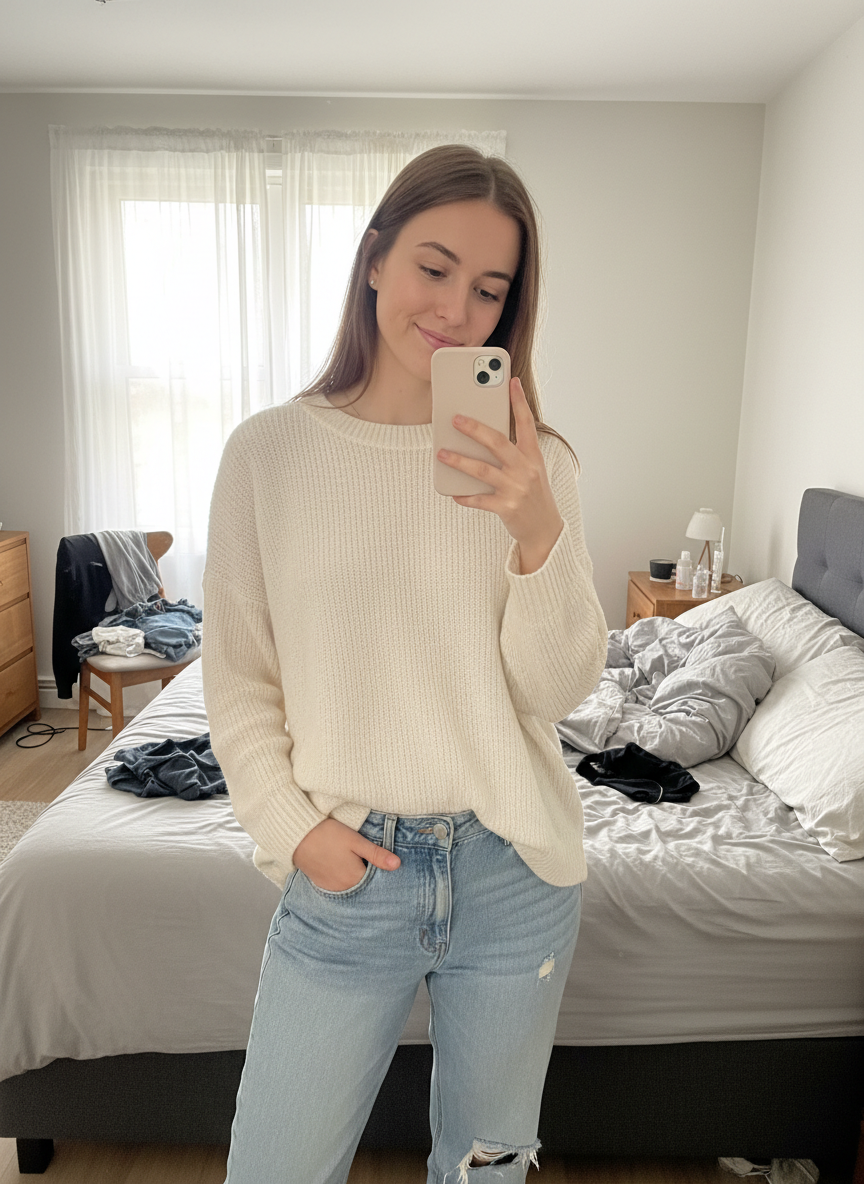
Most people shoot product photos on full auto and leave quality on the table. These settings make a significant difference:
- Use the main lens (1x). The ultra-wide and telephoto lenses on your phone have smaller sensors and produce lower quality. The main camera is always the sharpest and most capable.
- Shoot in RAW. Enable ProRAW (iPhone) or Expert RAW (Samsung). RAW files retain far more detail in highlights and shadows, giving AI tools — and you — more to work with during enhancement.
- Lock exposure and focus. Tap and hold on your product to lock auto-exposure and autofocus. This prevents the phone from refocusing or changing brightness between shots.
- Turn off HDR for product shots. HDR blends multiple exposures and can introduce artifacts, halos, and unnatural tones on product images. A single, well-exposed frame is cleaner.
- Use a timer or remote shutter. Even small hand movements cause blur at close range. Set a 2-3 second timer or use a Bluetooth remote to trigger the shutter hands-free.
- Clean your lens. This sounds trivial, but fingerprints on your phone lens are the number one cause of hazy, low-contrast product photos. Wipe it with a microfiber cloth before every session.
- Set white balance manually. If your camera app supports manual white balance, set it to match your lighting (daylight for window light, tungsten for warm bulbs). This ensures accurate color reproduction across all product shots.
Optional Next Step: AI Enhancement for Even Better Results
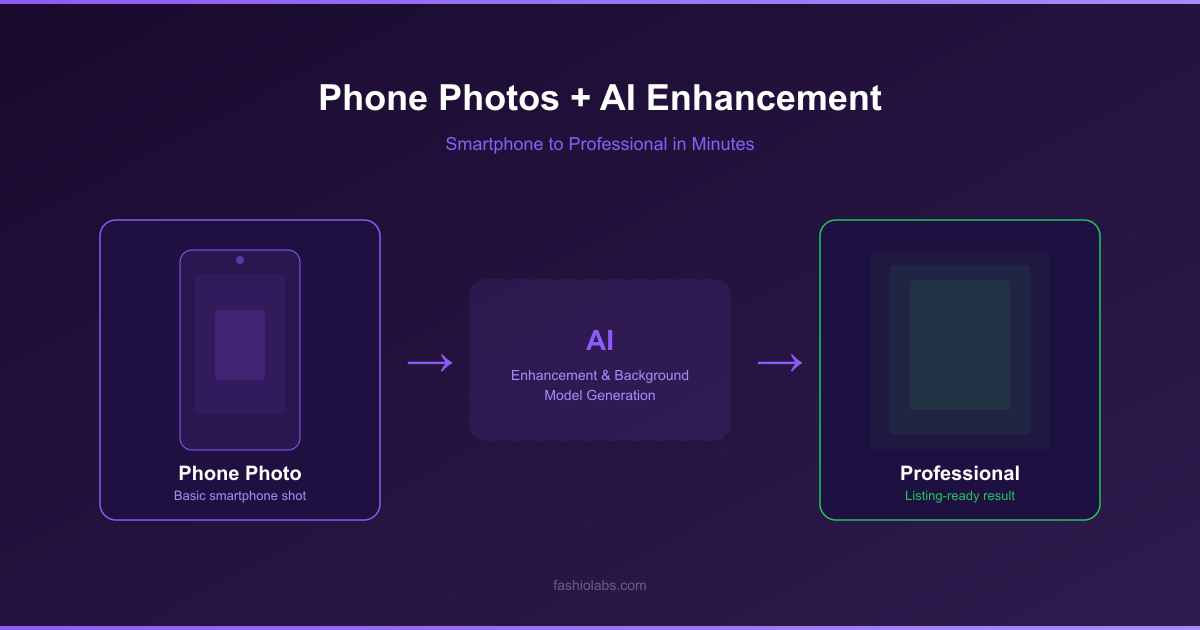
Great phone photography technique gets you 80% of the way to professional quality. If you want to take your images further, AI tools can handle post-processing tasks that would otherwise require Photoshop expertise. Fashio AI's Amateur-to-Professional tool is purpose-built for this last mile — turning smartphone fashion shots into studio-grade imagery automatically.
Turn Phone Photos into Professional Product Images
Background removal, 4K upscaling, and AI model generation — all trained specifically on fashion. No Photoshop required.
Start creating →Remove Background with AI
The first step is isolating your product from whatever background you shot it on. Whether it was a white seamless, a kitchen counter, or a wrinkled bedsheet, AI background removal produces a clean cutout in seconds.
Fashio AI's background removal is trained specifically on fashion products, which means it handles the details that general tools struggle with: translucent fabrics, lace edges, flowing scarves, thin straps, and fringe. Upload your phone photo, and the AI delivers a precise cutout with a transparent or solid white background.
Why this step matters: A clean, consistent background is the baseline expectation for any ecommerce platform. Amazon, Shopify, and every major marketplace require or strongly prefer white backgrounds. Starting with a clean cutout also gives you the flexibility to place your product on any background — lifestyle scenes, color blocks, or seasonal themes.
Pro tip: Batch process all your images at once. If you shot 50 products in a session, upload all 50 and let the AI process them simultaneously rather than one at a time.
Upscale to 4K with AI
Phone cameras capture plenty of megapixels, but crop, zoom, and compression can reduce effective resolution. AI upscaling restores and enhances detail to deliver crisp, 4K-resolution product images that look sharp on any screen — from mobile to desktop to print.
Fashio AI's fashion-specific upscaler doesn't just enlarge pixels. It intelligently reconstructs fabric texture, stitching detail, and garment structure using models trained on fashion imagery. The result is noticeably sharper than generic upscaling tools like Topaz or standard Photoshop upsampling.
When to upscale: Always upscale if you cropped heavily during editing, if you shot with a secondary lens (ultra-wide or telephoto), or if your target platform requires high-resolution images (marketplace hero images, print catalogs, large web banners).
Convert to On-Model Imagery with AI
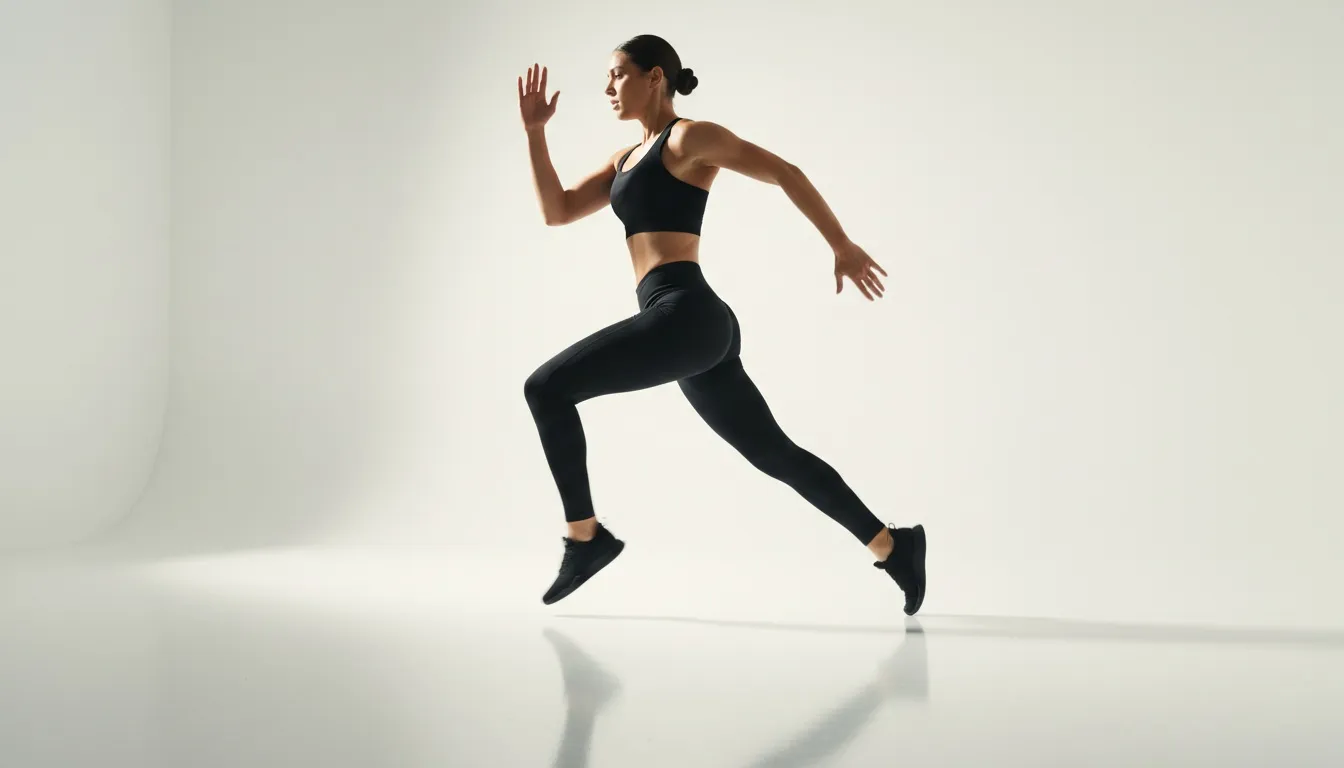
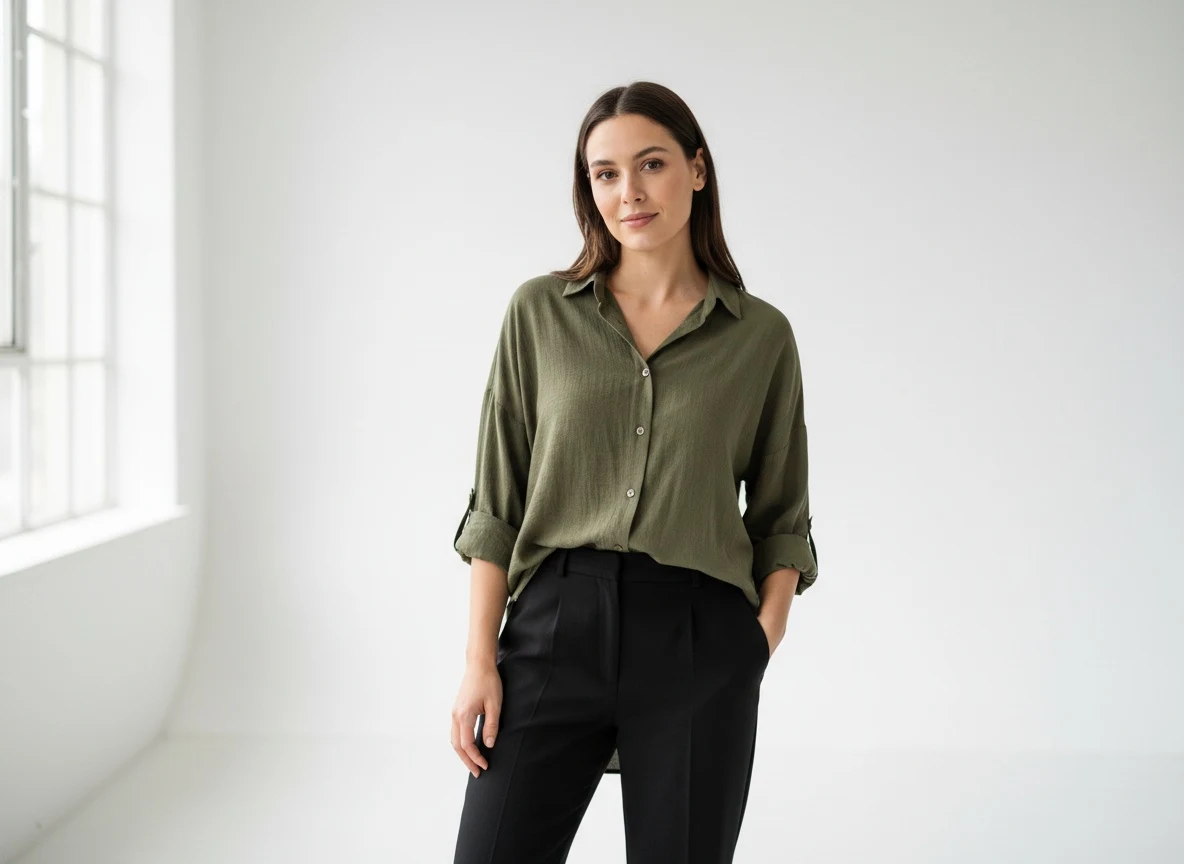
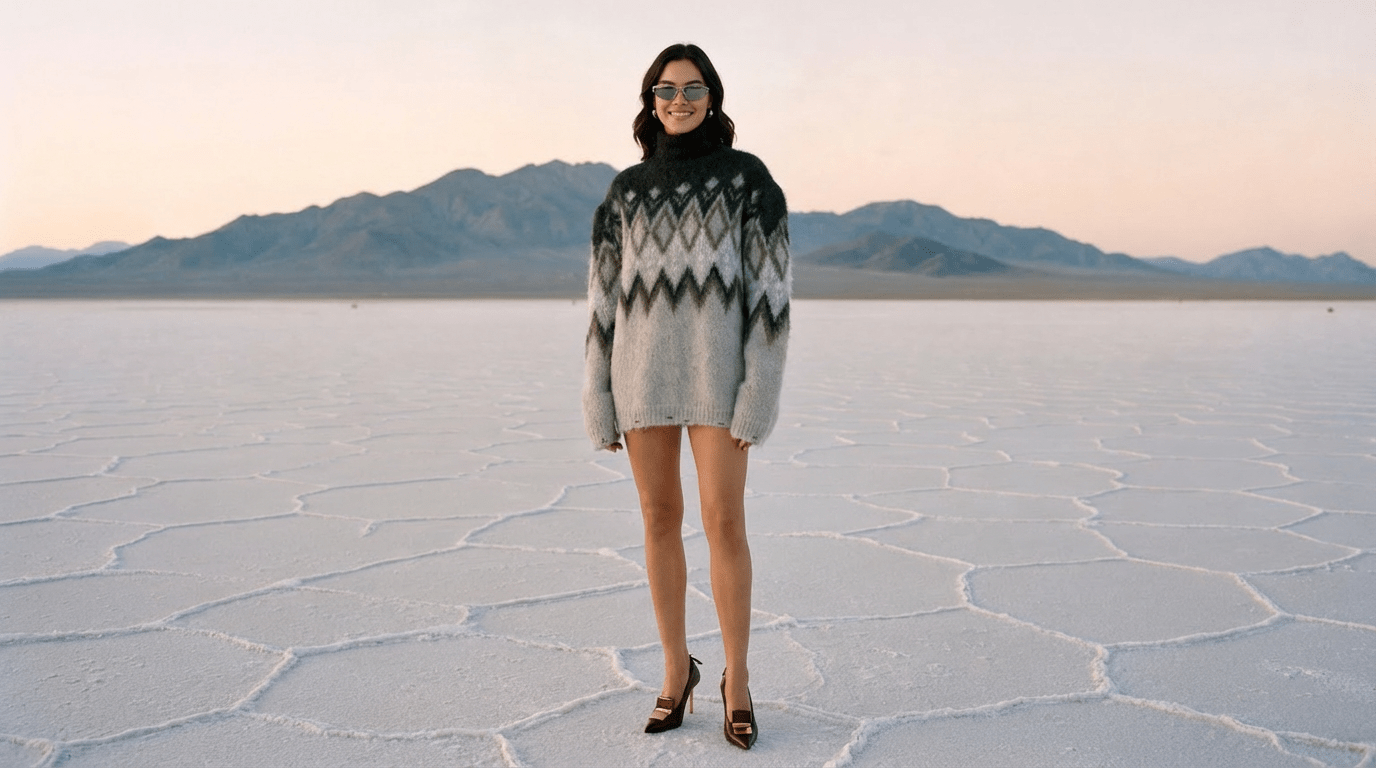
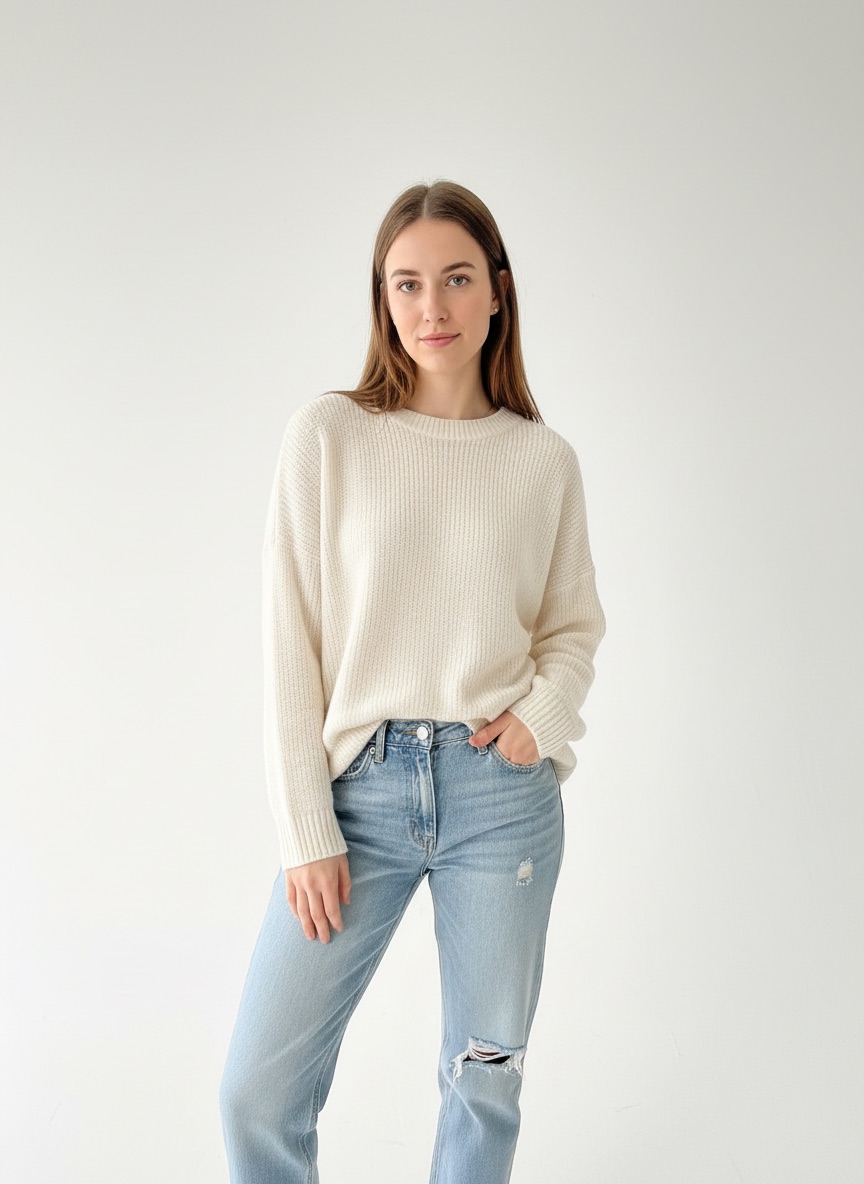
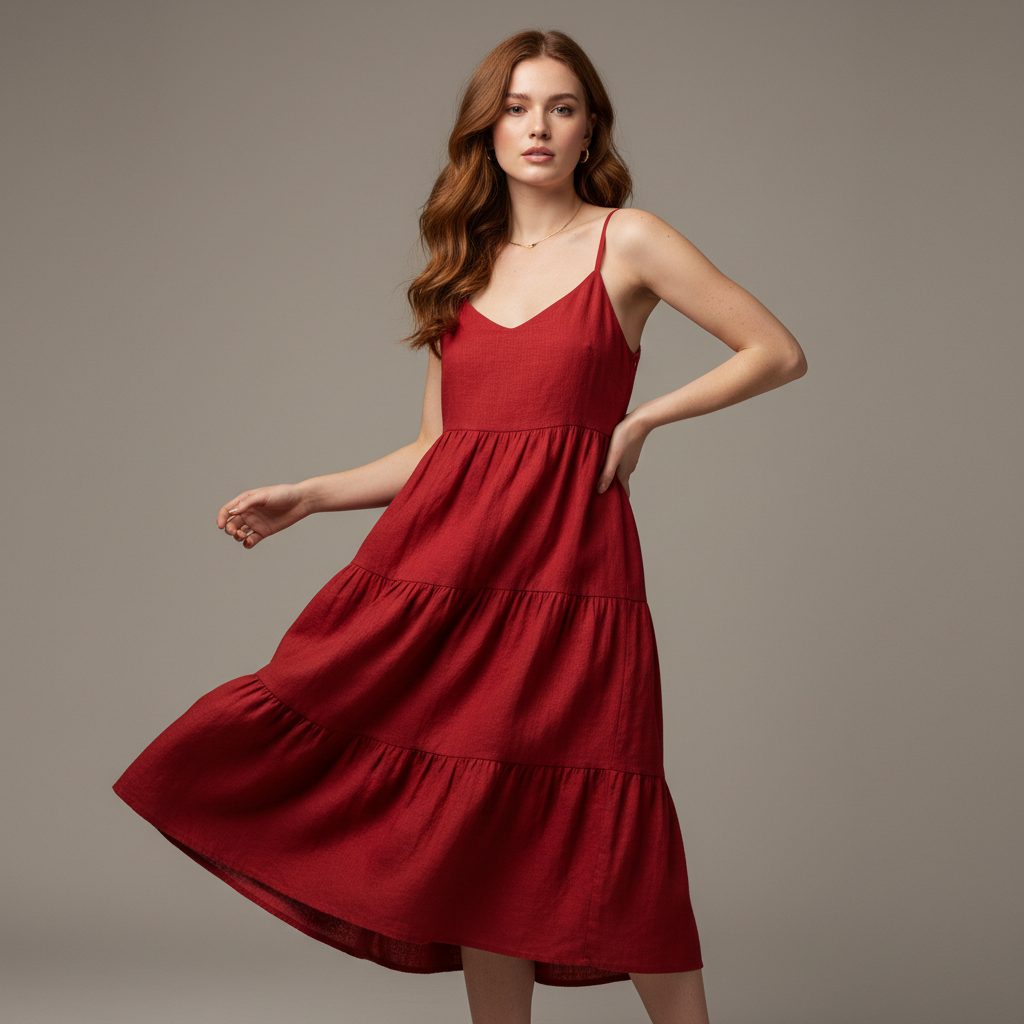
This is the step that truly transforms phone product photography. You shot a flat lay of a dress on your floor — and now AI turns it into a photorealistic image of a model wearing that dress in a studio setting.
AI Fashion Model Generator takes your product-only image and generates on-model photography with full control over model demographics, body type, pose, and scene. No casting agencies, no model fees, no studio rental, no scheduling. Just upload, configure, and generate.
On-model imagery gives shoppers the scale, drape, and fit information a flat product shot cannot, which is why it is the default format for apparel — shoppers can judge fit, proportion, and styling on a body instead of guessing from a flat garment.
Best practices for AI model generation:
- Start with a clean, well-lit flat lay or ghost mannequin image for best results
- Generate multiple model variations to represent your diverse customer base
- Use consistent model settings across a collection for a cohesive catalog look
- Generate both front and angled poses for key products
Create Video Content from Photos
Static images are table stakes. In 2026, every major platform — Instagram, TikTok, Amazon, Shopify — prioritizes video content. But shooting product video is even more time-consuming and expensive than photography. AI solves this too.
Fashio AI's Photo to Video tool transforms your enhanced product images into short, dynamic video clips ready for social media, product pages, and ads. Upload a single product image and get a polished video with natural motion, camera movement, and professional transitions.
Where to use AI product videos:
- Product detail pages — autoplay video increases time on page and conversion
- Instagram Reels and TikTok — short product videos drive discovery and engagement
- Paid ads — video ads consistently outperform static image ads on Meta and TikTok
- Email campaigns — animated product showcases boost click-through rates
Cost Comparison: Professional Photographer vs. Phone + AI
The economics of phone photography combined with AI enhancement are overwhelming. Here's a realistic cost breakdown for producing 50 product images:
| Cost Factor | Professional Studio Shoot | Phone + AI Enhancement |
|---|---|---|
| Photographer / day rate | $800 - $2,000 | $0 (you shoot it) |
| Studio rental | $300 - $800 | $0 (any room works) |
| Model fees | $500 - $1,500 | $0 (AI model generation) |
| Post-production / retouching | $200 - $500 | Included in AI processing |
| AI enhancement tools | N/A | Fashio AI subscription |
| Equipment | N/A (photographer provides) | $60-100 (lighting kit, one-time) |
| Total per session | $1,800 - $4,800 | Under $100 |
| Cost per image | $36 - $96 | Under $2 |
| Turnaround time | 5-10 business days | Same day |
- $1,800 - $4,800 per session
- $36 - $96 per image
- 5-10 business days turnaround
- Requires scheduling photographer, studio, models
- Limited reshoots without additional cost
- Under $100 per session
- Under $2 per image
- Same-day turnaround
- Shoot anytime, anywhere
- Unlimited reshoots at no extra cost
The savings compound dramatically at scale. A brand shooting 500 SKUs per season saves $15,000 - $45,000+ per cycle by switching to the phone + AI workflow. That budget can be redirected to marketing, inventory, or product development.
Tips for Different Product Types
Clothing and Apparel
Clothing is the most common — and most challenging — product category for phone photography. Fabric wrinkles, color accuracy, and showing garment structure all matter.
- Steam or iron every garment before shooting — wrinkles look terrible in flat lays and destroy AI enhancement quality
- Use clips and pins on the back side to create a fitted, flattering shape in flat lay shots
- Shoot multiple angles — front, back, and detail shots of fabric, labels, and hardware
- Prioritize AI model generation — clothing converts dramatically better on-model than flat lay
Jewelry and Accessories
Small, reflective products require extra attention to lighting and focus.
- Use macro mode on your phone for close-up detail shots of stones, clasps, and engravings
- Diffuse your light heavily — harsh light on metal and gemstones creates blown-out hotspots
- Shoot on a contrasting background — dark jewelry on white, light jewelry on dark gray or black
- Use a tripod — any camera shake at macro distances produces noticeable blur
Shoes and Footwear
Shoes have complex shapes and important details on the sole, interior, and side profile.
- Capture the 45-degree hero angle — slightly above, showing the top and side profile simultaneously
- Shoot the sole — buyers want to see tread patterns and sole material
- Stuff shoes with tissue paper to maintain shape and structure during the shoot
- Show scale — include at least one shot that communicates the shoe's actual size
Frequently Asked Questions
Can I take professional product photos with just my phone?
Yes. Modern smartphones have camera hardware that rivals entry-level DSLRs. When combined with proper lighting, composition, and AI enhancement tools like Fashio AI, phone photos can match or exceed traditional studio quality for ecommerce listings. The key is good lighting and using the right AI tools for post-processing.
What is the best phone for product photography in 2026?
The iPhone 16 Pro Max and Samsung Galaxy S26 Ultra are the top choices thanks to advanced computational photography, ProRAW/Expert RAW capture, and macro capabilities. That said, any flagship phone from the last two years will produce excellent results when paired with proper lighting and AI enhancement.
How much does AI photo enhancement cost compared to a professional photographer?
Professional product photography is booked at a day rate covering a limited number of final images. AI enhancement with Fashio AI is priced per credit instead — $29.99/month for 160 credits — about $0.75 per generated image at 4 credits per generation — delivering background removal, upscaling, and on-model generation at scale.
Do AI-enhanced phone photos convert as well as studio photos?
Yes. A/B tests consistently show that AI-enhanced product images perform on par with traditional studio photography for ecommerce conversion rates. In some cases, AI-generated on-model imagery outperforms studio shots by 15-25% because of greater diversity in model representation and styling options.
What lighting setup do I need for phone product photography?
The simplest effective setup is two softbox lights ($30-50 each) positioned at 45-degree angles to your product, plus a white foam board as a reflector. Natural window light also works well for daytime shoots. Avoid overhead fluorescent lighting and mixed color temperatures.
Can AI remove the background from photos taken on my kitchen table?
Absolutely. Fashio AI's background removal uses fashion-trained AI that precisely detects garment edges — even complex details like lace, fringe, and translucent fabrics. It doesn't matter if you shot on a kitchen table, bed, or floor. The AI isolates the product cleanly regardless of the original background.
How do I convert a flat lay phone photo into an on-model image?
Upload your flat lay or product-only photo to AI Fashion Model Generator. Select your preferred model characteristics — ethnicity, body type, pose, and setting — and the AI generates photorealistic on-model imagery in seconds. No casting, no studio, no scheduling required. Try it now at Fashio AI.
Start Shooting Professional Product Photos Today
You don't need a $5,000 camera, a rented studio, or a professional photographer to create product images that sell. Your phone, a basic lighting setup, and the techniques in this guide are all it takes to produce ecommerce imagery that converts.
The workflow is simple: set up your lighting, shoot with intention, and apply the camera settings covered above. For brands that want to go further, Fashio AI's suite of fashion-specific tools — from background removal to AI model generation — can take your phone photos to the next level.
Ready to Upgrade Your Product Photography?
Use Fashio AI to turn phone photos into studio-quality product images. Cancel any time.
Start creating →