
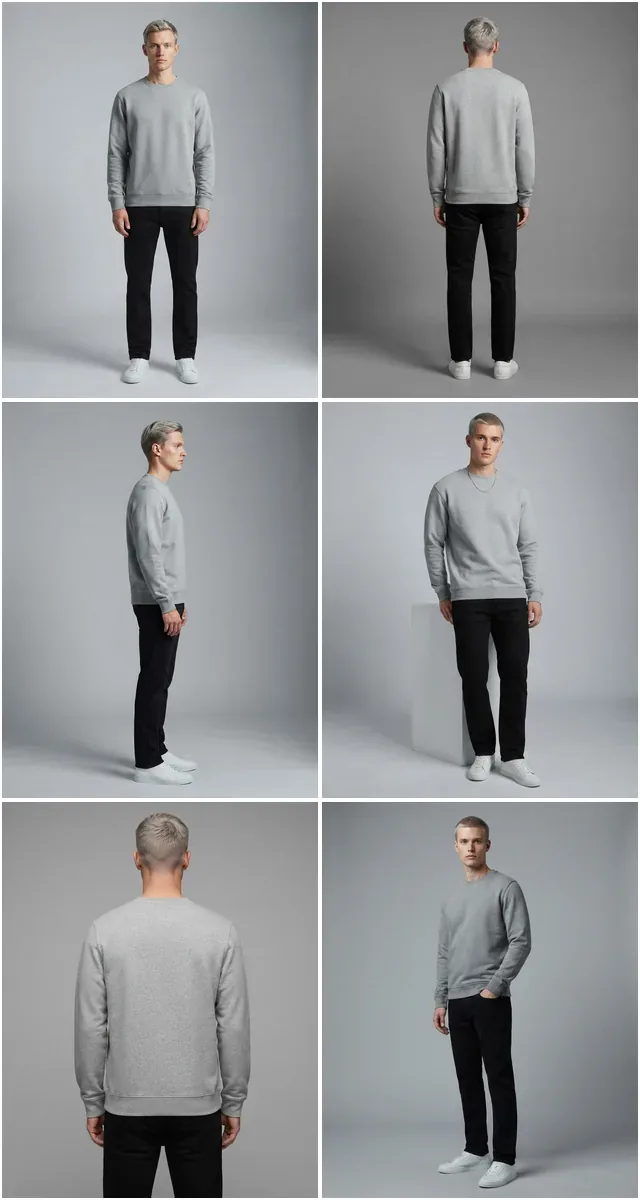
Product photos that look shot,
without the shoot.
Fashio sits inside your ikas panel. Open a product, pick a look, and get on-model photography you can put straight on the product page.
Works on your existing product photos. Nothing is changed until you press the button.
What you can do from a product page
Put the garment on a model
Nothing extra to upload. Fashio takes the product photo already on the product and produces a model wearing it — you choose the model, the setting and the pose.
Shoot a whole set at once
Pick a ready-made photoshoot and Fashio renders every shot in it against your product: front, side, detail, full length. One product, a full page of images.
Fix the photos you have
Remove the background, upscale a soft image, reframe for a different aspect ratio, or turn an amateur phone shot into something that belongs on a product page.
Publish without leaving ikas
Every result has an Add to product button. Press it and the image lands on that product, ready to reorder or set as the main image.
How it works
- 1
Install the app
Fashio asks to read and write products. It never touches orders, customers or payments.
- 2
Connect your Fashio account
Paste your Fashio API key once. You buy credits in your Fashio dashboard, not through ikas, so nothing is charged to your store bill.
- 3
Open a product
In the product page, open the app actions menu and choose the Fashio entry — one for a single photo, one for a catalogue shoot.
- 4
Generate and add
Pick the source photo and the look, press generate, and add the results you like to the product. The rest you simply download or discard.
Where to find it
Both entries sit in the actions menu on a product page in your ikas panel. There is no separate dashboard to learn and no settings screen to configure.
- FGenerate with Fashio
- FCatalog shoot with Fashio
What it does not do
Nothing happens on its own
Fashio does not watch your catalogue, does not generate in the background, and never edits a product you did not open. Every image costs credits, so every image is a decision you make.
Products only
The app reads a product's existing images and writes new ones back. It has no access to orders, customers, discounts or anything else in your store.
No customer data
Fashio works on product images. It never receives, requests or stores customer information of any kind.
Questions
- Do I need a photographer or a model?
- No. Fashio works from the product photo you already have — a flat lay, a mannequin shot, even a phone picture on a hanger. The model is generated.
- How much does it cost?
- You buy credits in your Fashio account and spend them per image. Nothing is billed through ikas, and installing the app costs nothing on its own.
- Can I use it on several products at once?
- A catalogue shoot runs one product at a time but renders every shot in the chosen photoshoot, so a single product with a few angles becomes a full set of images.
- Does it change my product pages automatically?
- Never. Results appear in the app first. An image is only added to a product when you press Add to product on that specific image.
- I also sell on Shopify. Do I pay twice?
- No. Credits live in your Fashio account, not in the store, so the same balance covers ikas, Shopify and the API at the same time.
Try it on one product
Pick your worst product photo and see what comes back. That is usually the fastest way to tell whether this is worth it for your catalogue.
Get startedFashio runs inside your ikas panel. Open a product, pick a look, and get on-model photography made from the product photo you already have — then add it to the product with one press.
How it works
1. Install the app and give it product access. Fashio reads a product's existing images and writes new ones back. It never touches orders, customers or payments.
2. Paste your Fashio API key once. Credits are bought in your Fashio account, not through ikas, so nothing is added to your store bill.
3. Open a product and generate. From the product's actions menu, choose the Fashio entry — one for a single photo, one for a catalogue shoot. Pick which of the product's photos to work from, choose the tool, the model, the setting and the pose.
4. Add what you like. Each result has an Add to product button. Anything you do not add simply is not there.
What you get
- On-model photography from a flat lay, a mannequin shot, or a phone picture on a hanger.
- Catalogue shoots that render every frame of a chosen photoshoot against one product.
- Cleanup tools — background removal, upscaling, reframing, amateur-to-professional.
- The same studio as the web dashboard. Nothing is held back for the browser.
What it does not do
It does not watch your catalogue, does not generate in the background, and does not write your SEO or alt text. A shoot runs on the product you opened, and an image reaches that product only when you press the button on it.
Also selling on Shopify?
Credits live in your Fashio account rather than in the store, so one balance covers ikas, Shopify and the API at the same time. See all integrations.